
I still remember the first time I hooked up a second monitor. I plugged it in, waited for the magic to happen, and got… a black screen with “No Signal” staring back at me. Turns out I’d plugged the cable into the motherboard port instead of my graphics card. Ten minutes and one Google search later, I had it working, and I’ve never gone back to a single screen since.
Here’s How to Connect Two Monitors to One PC Windows 11/10
If you’re at that same point right now, staring at a spare monitor and want to know what to do with it, don’t worry Windows makes this pretty painless once you know where to look. Here’s the process I use, step by step.
First, Check What Cable You’re Working With
Before you touch anything in Windows, look at the ports on the back of your monitor and your PC.
- HDMI is the most common option and works fine for 1080p or 1440p at normal refresh rates.
- DisplayPort is what you want if you’re gaming or doing anything at 4K with a high refresh rate.
- USB-C or Thunderbolt is common on newer laptops, and sometimes that one cable handles both video and charging at once.
If you’re not sure what your machine actually has, it’s worth taking two minutes to check your PC specs first. It’ll save you from buying the wrong adapter or cable, which I’ve done more than once.
You should keep in mind that if you have a dedicated graphics card, always plug your monitor cables into the GPU ports, not the motherboard ports. Motherboard video ports are usually disabled once a GPU is installed, and that’s the number one reason people end up with a blank second screen.
Setting It Up: The Real Steps to Follow
Once your monitor is plugged in and powered on, here’s what to do.
1. Turn everything on and give it a second. Plug the monitor into power and connect your cable to the PC. Windows usually chimes when it detects a new display.
2. Open Display Settings. Right-click anywhere on your desktop and choose Display Settings. Or just hit Win + P, which pulls up the Project menu on the side of your screen. If that shortcut doesn’t seem to do anything and you’re not sure why, it might be worth peeking at the Get Help app guide, since Windows’ built-in troubleshooter can flag driver or display issues you might miss otherwise.
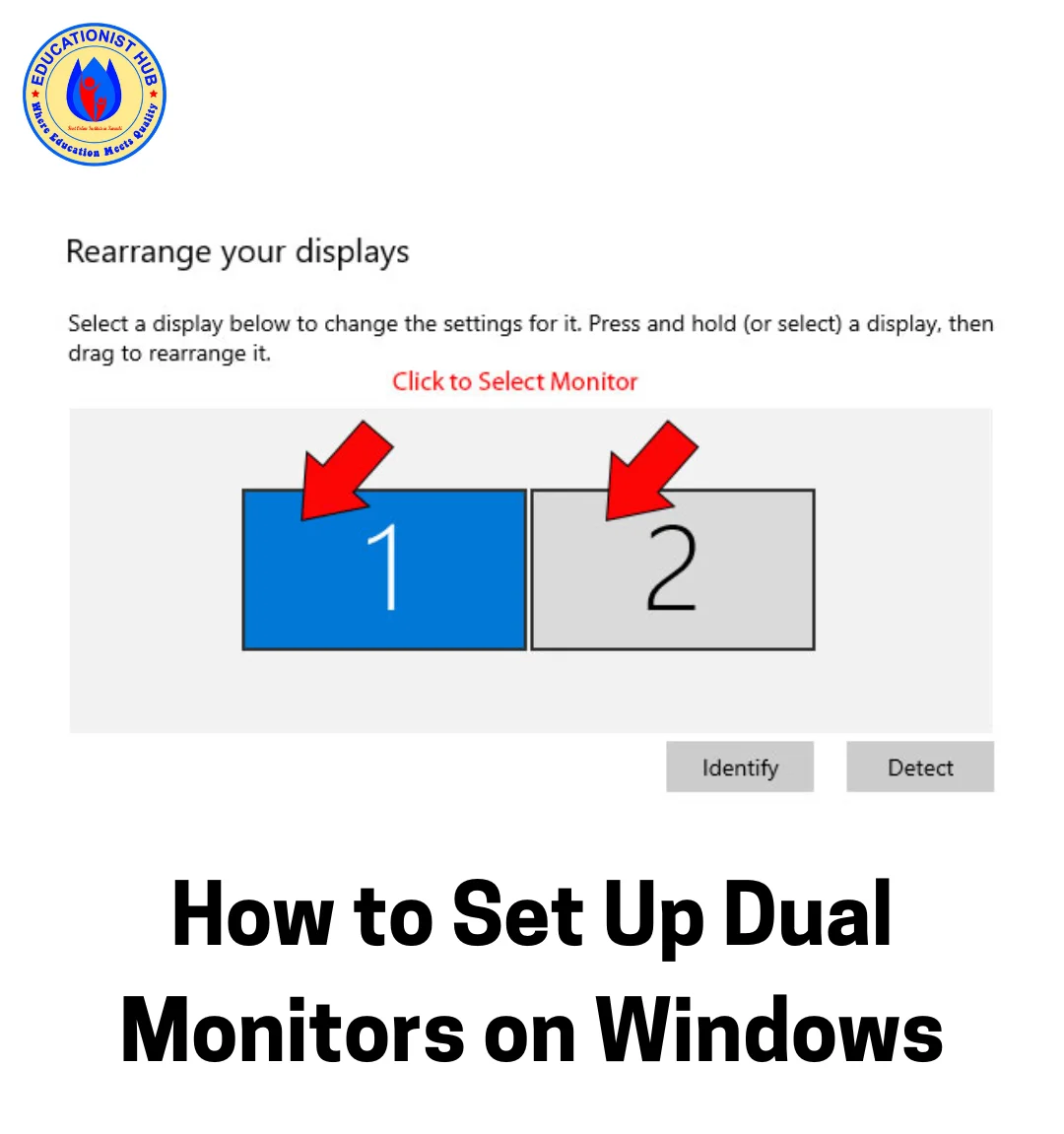
3. Identify your screens. In the Display Settings window, you’ll see two numbered boxes. Click “Identify” and Windows will flash a number on each physical screen so you know which is which. Pick which one should be your main screen and tick “Make this my primary display.”
4. Pick Extend or Duplicate. This is really the whole point of the exercise. Scroll to “Multiple displays” and choose:
- Extend these displays — turns your two screens into one big workspace. This is what most people actually want.
- Duplicate these displays — mirrors the same image on both, handy for presentations.
5. Arrange them to match your desk. Drag the numbered boxes around in the settings menu so they match how your monitors actually sit in real life. If one’s off to the side, or up higher than the other, reflect that here. Otherwise your mouse will feel like it’s teleporting when you move between screens.
6. Set resolution and refresh rate. Click each screen and make sure the resolution is set to whatever’s marked “Recommended.” Gamers should also check the refresh rate under “Advanced display” to make sure it matches what the monitor can actually do.
That’s genuinely it. Five minutes, give or take.
When Things Don’t Go So Smoothly
Sometimes you do everything right and still get a stubborn black screen. A few things usually fix it:
- Hit Detect. In Display Settings, there’s a “Detect” button that forces Windows to look again for connected screens. Sounds too simple, but it works more often than you’d expect.
- Update your graphics driver. Open Device Manager, find your GPU under Display Adapters, and update the driver. Outdated drivers are a common reason a second screen gets ignored entirely. If you’ve had similar detection headaches with other hardware, the process for reinstalling a Bluetooth driver follows basically the same logic.
- Check the monitor’s input source. Press the input/source button on the monitor itself and confirm it’s set to the port you actually plugged into.
- If you’re on a laptop, double check you’re not accidentally in a mode that’s limiting your connectivity. It sounds unrelated, but I’ve seen Airplane Mode settings cause weird display and connection quirks on some laptops, so it’s worth ruling out.
A Couple of Extra Tips
While you’re getting your setup dialed in, it’s a good habit to jot down your monitor’s exact resolution and refresh rate somewhere before you start changing things. I just keep a quick note using Notepad so I can revert if something looks off after I change a setting.
And if you’ve fiddled with display settings so much that things feel broken beyond repair (it happens), Windows’ Reset PC / Fresh Start option is there as a last resort. I wouldn’t jump to it for a display issue, but it’s good to know it exists.
Few Answers to Common Questions
My PC only has one HDMI port. Can I still run dual monitors? You can’t daisy-chain HDMI ports. Plug one monitor into HDMI and the other into DisplayPort if your GPU has both. If it genuinely only has one port total, you’ll need a second graphics card or a USB-to-HDMI adapter (not ideal for gaming, but it works).
Can I do this on a laptop? Yes, most modern laptops handle at least two external displays through USB-C or a docking station. Just keep it plugged into power, since running two screens drains a laptop battery fast.
Why isn’t my second monitor showing up at all? Nine times out of ten, it’s plugged into the motherboard instead of the graphics card. The rest of the time, clicking “Detect” solves it.
How do I move my taskbar to the other screen? Set that screen as your primary display in Display Settings, and the taskbar follows.
Final Words
Once you’ve got it set up, dual monitors really change how you work or play. It took me one frustrating afternoon to get it right the first time, but now it takes about five minutes on any new machine. Plug into the right ports, open Display Settings, identify your screens, and choose Extend. That’s really all there is to it.

📰 Meet Our Newest Author: Farhan Ahmed
We are thrilled to welcome Farhan Ahmed, a dynamic addition to our team of seasoned writers at TheEducationistHub.com. Farhan Ahmed is a highly skilled professional with a robust background in the realms of SEO, blogging, and the latest news trends.
🎓 Educational Background: Farhan Ahmed is a proud graduate of Karachi University, holding a Master’s in Business Administration (MBA). This academic foundation has not only equipped Farhan Ahmed with a strategic mindset but has also instilled a deep understanding of business dynamics.
💼 Professional Journey: With an impressive 4 to 5 years of hands-on experience in the field, Farhan Ahmed brings a wealth of expertise to our newsroom. Having navigated the intricacies of SEO and blogging, Farhan Ahmed has honed the art of crafting content that not only engages but also performs exceptionally well in the digital landscape.
📝 Writing Prowess: Farhan Ahmed specializes in distilling complex information into digestible and engaging pieces. Their knack for identifying and covering trending news and updates ensures that our readers stay well-informed on the latest developments across various domains.
🌐 Digital Savvy: In an era where the online landscape is ever-evolving, Farhan Ahmed is well-versed in leveraging digital tools and strategies to maximize the reach and impact of their work. Their proficiency in SEO ensures that our content not only informs but is also easily discoverable by a wider audience.
We are confident that Farhan Ahmed will play a pivotal role in enhancing the quality and relevance of the content we deliver to our readers. Join us in extending a warm welcome to Farhan Ahmed as we look forward to an exciting journey of insightful updates and news coverage.
Stay tuned for the latest from TheEducationistHub.com with Farhan Ahmed on board!


Leave a Reply