Managing Audio Input Devices in Windows 11 & 10
A few weeks ago I joined a call with two minutes to spare, and nobody could hear me. My mic worked fine the day before. Windows had quietly picked a different input device, and I spent the first five minutes of that meeting typing “can you hear me?” in the chat. Not my finest moment.
If you have been there too, this article is for you. I’ll guide you through managing audio input devices on Windows 11 and Windows 10, one step at a time, in the order I would actually check the ways.
Step 1: Check the Basics First
I know, I know. But I have lost real time to a loose plug, so I always start here.
- Unplug your microphone and plug it back in firmly.
- Try a different USB port. A port on the back of a desktop is usually more reliable than a hub.
- For Bluetooth headsets, confirm they are connected in Settings > Bluetooth & devices. Also make sure airplane mode is off, because it switches Bluetooth off along with Wi-Fi and a lot of people forget that.
Step 2: Pick the Right Input Device
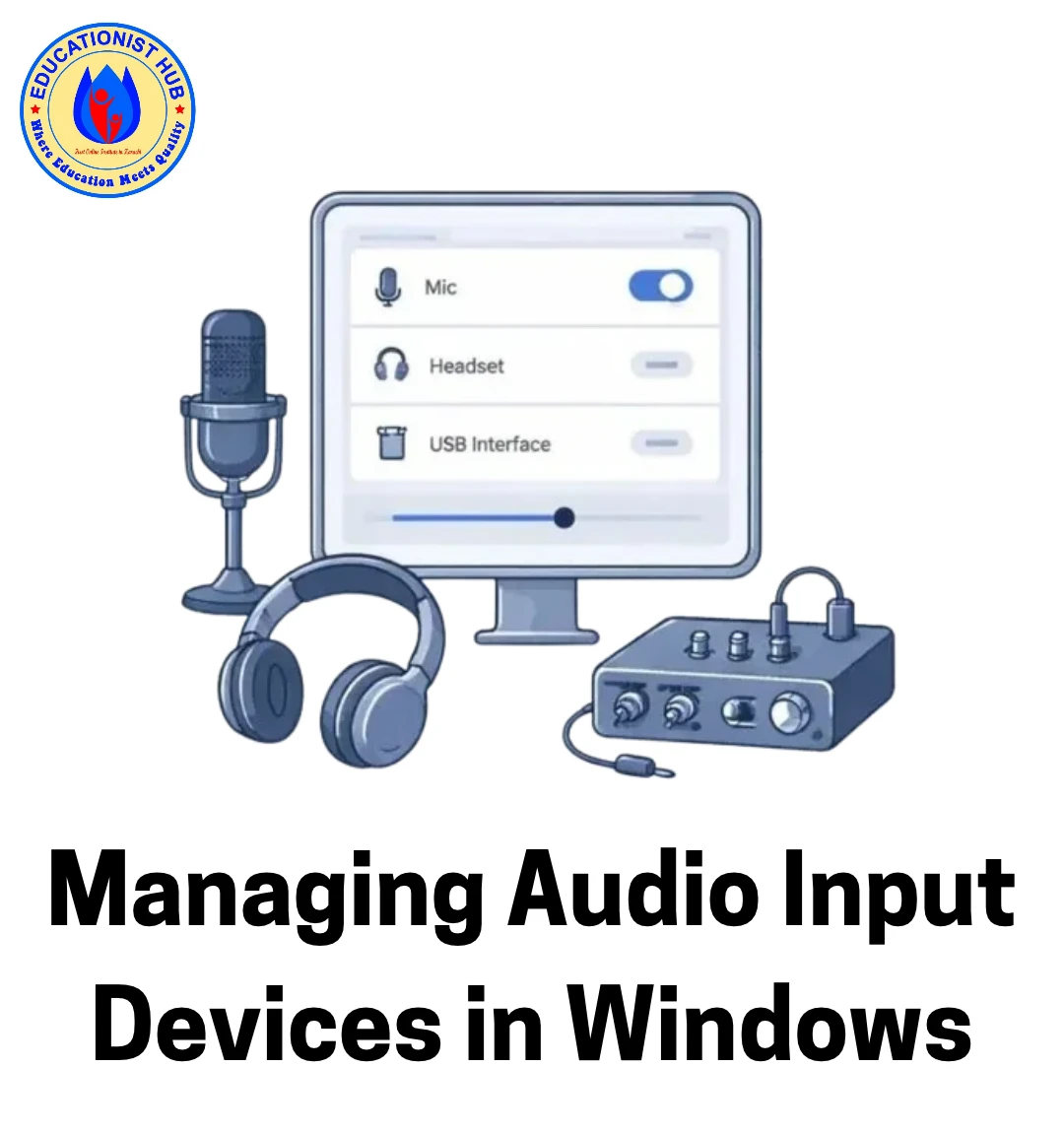
Open Settings > System > Sound. Under Input, you will see a list of microphones. Select the one you want.
On Windows 11, click the arrow next to your device and use Start test to speak and check the level. On Windows 10, just talk and watch the blue bar under “Test your microphone.” If the bar moves, Windows can hear you.
Here is a tip I wish I had known years ago. Press Win + R, type mmsys.cpl, and hit Enter. This opens the old Sound window, which still gives you more control than the Settings app. On the Recording tab, right-click your mic and set it as both the Default Device and the Default Communication Device. If they point to different mics, your recording app and your video call can end up using different ones. That was exactly my problem on that call.
While you are there, right-click the empty space and tick Show Disabled Devices. Sometimes your mic is simply switched off. Right-click it and choose Enable.
Step 3: Review Your Privacy Permissions
This is the one most people skip, and it causes a lot of “my mic is dead” moments.
Go to Settings > Privacy & security > Microphone (on Windows 10, Settings > Privacy > Microphone). Make sure these are on:
- Microphone access
- Let apps access your microphone
- Let desktop apps access your microphone
The third one is very important. Zoom, Teams, Discord, OBS and Audacity are desktop apps, and they all depend on that single switch. If it is off, none of them will hear you, no matter how good your other settings are.
Step 4: Adjust Levels and Exclusive Mode
Back in mmsys.cpl, select your microphone, click Properties, then open the Levels tab. I usually set the volume around 75 to 80 percent. It gives a clear voice without clipping when you laugh or raise your voice. If it is still too quiet at 100 percent, check whether your mic has its own gain knob or a companion app.
Next, open the Advanced tab. If your mic cuts out when a second app opens, untick Allow applications to take exclusive control of this device. This one fixed my Discord and Audacity clash right away.
If your voice sounds odd or the volume jumps around, look for an Enhancements tab and turn the enhancements off. Some audio drivers add noise suppression that does more harm than good.
Step 5: Fix Driver Problems
When the settings look right but the mic still fails, suspect the driver.
Right-click the Start button and open Device Manager. Expand Sound, video and game controllers and Audio inputs and outputs. A yellow exclamation mark or a down arrow means something is wrong.
Right-click the audio device and choose Update driver. If that does nothing, choose Uninstall device, restart your PC, and let Windows install a fresh driver. If you are not sure which audio chip your computer uses, you can check your PC specs first, so you download the correct driver from the manufacturer’s site.
Step 6: Handle Hardware-Specific Problems
- USB microphones: Turn off Fast Startup if the mic is missing after boot. Open Control Panel > Power Options > Choose what the power buttons do, click Change settings that are currently unavailable, and untick Turn on fast startup.
- Bluetooth headsets: These work in two modes. One gives good sound but no mic. The other, called Hands-Free, enables the mic but sounds worse. If your mic is missing, check mmsys.cpl for a disabled Hands-Free device. Also keep in mind that Bluetooth headsets can drain a laptop quicker than you would expect, so these battery life tips are worth a look if you take calls on the go.
- Single-plug headsets (3.5mm combo jack): Windows often treats these as headphones only. Open Realtek Audio Console, or whatever audio control panel your PC has, and set the jack to Headset or Headphone with microphone.
Step 7: Set Different Mics for Different Apps
Windows 11 lets you assign microphones per app. Go to Settings > System > Sound > Volume mixer, expand an app, and look for an input device dropdown.
Here is the catch. Many big apps, including Zoom, Teams, Discord and OBS, ignore this and keep their own device setting. For those, open the app’s audio settings and pick the mic there. If you run a streaming setup with dual monitors, keep the app’s audio settings on one screen while you test. It saves a lot of switching around.
Step 8: Restart the Audio Services
If the mic shows up in Device Manager but apps cannot see it, press Win + R, type services.msc, find Windows Audio and Windows Audio Endpoint Builder, right-click each and choose Restart. It takes about ten seconds and has rescued me more than once.
Keep Problems From Coming Back
- After a big Windows update, recheck your default mic and your privacy settings. Updates sometimes reset them without telling you.
- If your mic lives on your desk permanently, leave it plugged in. Constant unplugging makes Windows reshuffle your default device.
- Create a restore point before you update drivers, so you can roll back quickly.
If nothing works and you have tried everything above, test the mic on another computer. If it fails there too, the mic is the problem. If it works fine, and your system is a mess of old settings, a fresh start reset is the last option I would try, after backing up your files.
Here Are the Key Points for You
| What to check | Where |
|---|---|
| Cable, USB port, Bluetooth pairing | Hardware |
| Desktop app mic access is on | Settings > Privacy & security > Microphone |
| Mic set as Default and Default Communication | mmsys.cpl > Recording |
| No warning icons on audio drivers | Device Manager |
| Exclusive mode off if sharing the mic | mmsys.cpl > Properties > Advanced |
| Audio services running | services.msc |
Work through these in order and you will fix most mic problems in a few minutes, long before your meeting starts.

📰 Meet Our Newest Author: Farhan Ahmed
We are thrilled to welcome Farhan Ahmed, a dynamic addition to our team of seasoned writers at TheEducationistHub.com. Farhan Ahmed is a highly skilled professional with a robust background in the realms of SEO, blogging, and the latest news trends.
🎓 Educational Background: Farhan Ahmed is a proud graduate of Karachi University, holding a Master’s in Business Administration (MBA). This academic foundation has not only equipped Farhan Ahmed with a strategic mindset but has also instilled a deep understanding of business dynamics.
💼 Professional Journey: With an impressive 4 to 5 years of hands-on experience in the field, Farhan Ahmed brings a wealth of expertise to our newsroom. Having navigated the intricacies of SEO and blogging, Farhan Ahmed has honed the art of crafting content that not only engages but also performs exceptionally well in the digital landscape.
📝 Writing Prowess: Farhan Ahmed specializes in distilling complex information into digestible and engaging pieces. Their knack for identifying and covering trending news and updates ensures that our readers stay well-informed on the latest developments across various domains.
🌐 Digital Savvy: In an era where the online landscape is ever-evolving, Farhan Ahmed is well-versed in leveraging digital tools and strategies to maximize the reach and impact of their work. Their proficiency in SEO ensures that our content not only informs but is also easily discoverable by a wider audience.
We are confident that Farhan Ahmed will play a pivotal role in enhancing the quality and relevance of the content we deliver to our readers. Join us in extending a warm welcome to Farhan Ahmed as we look forward to an exciting journey of insightful updates and news coverage.
Stay tuned for the latest from TheEducationistHub.com with Farhan Ahmed on board!