
I still remember the first time someone asked me what CPU my laptop had, and I just… stared at them. I had no idea. Turns out you don’t need any fancy software to find that stuff out — Windows already has everything built in, you just have to know where to look.
Here’s How I Can Check My Computer Specs
If you’re trying to find out whether your machine can handle a game, whether it’s time for an upgrade, or you’re just want to know what’s really inside the box, here’s every method I use myself, from the quick five-second check to the deep-dive tools.
1. Start With Settings
Honestly, if you only remember one method, make it this one.
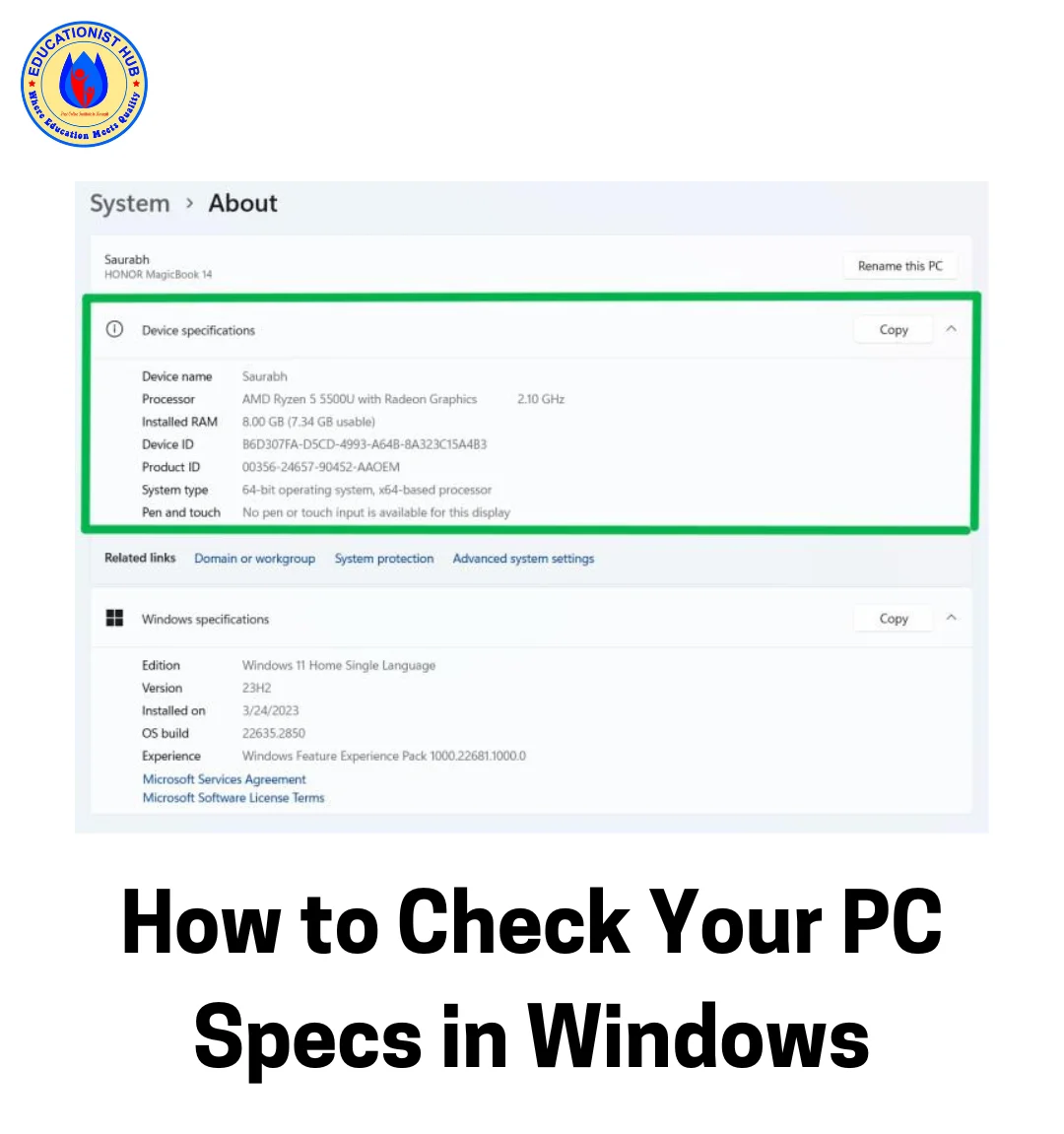
- Hit Windows + I to pull up Settings.
- Go to System, then scroll down to About (on Windows 10 it’s under System & Security, buried one level deeper).
- Under “Device specifications,” you’ll immediately see your processor, your installed RAM, and your system type — meaning whether you’re on 64-bit or 32-bit.
That last bit is more important than people realize. If you’ve ever tried installing software and gotten a confusing error, checking your system type here is usually the first thing to rule out. And if things get weird enough that you’re not sure what a setting even does, the Get Help app that ships with Windows can walk you through it too.
2. Task Manager Shows You Specs and Performance
This is the one I use when I actually want to see hardware working in real time, not just listed on a page.
- Press Ctrl + Shift + Esc.
- Click over to the Performance tab.
- From there you can click through CPU, Memory, GPU, and Disk on the left side.
What I like about this tab specifically is that it tells you flat out whether your drive is an SSD or HDD, right there under the disk name. No guessing, no command line. If your RAM shows a speed in MHz down in the corner, that’s genuinely useful info if you’re ever comparing sticks before buying new memory — and if you’re on a laptop, keep an eye on this tab when you’re also trying to stretch out your battery life, since a CPU pegged at 100% drains a battery fast.
3. msinfo32 — The Old Tool That Still Does It Best
For a full rundown you can actually save and send to someone (support tech, repair shop, whoever), this one’s hard to beat.
- Press Windows + R, type
msinfo32, hit Enter. - The System Summary page dumps out your OS build, full processor details, total RAM, motherboard info, and BIOS version all at once.
- You can export it as a text file if you ever need to hand your specs over to someone else — open it up afterward in something as simple as Notepad if you want to trim it down before sending.
4. Device Manager — To Check What’s Actually Installed
This one won’t tell you your RAM total, but it’s the place to go if a piece of hardware isn’t behaving.
- Right-click the Start button and choose Device Manager.
- Expand things like Display adapters or Network adapters to see what Windows has detected.
- Double-click a device, then check the Driver tab for version info.
If your Bluetooth mouse or headphones suddenly stop connecting, this is where you’d go to sort it out — and if a driver’s clearly outdated or missing, it’s worth looking at how to reinstall your Bluetooth driver rather than assuming the hardware itself has failed.
5. The Old-School Right-Click Method
Sometimes the simplest way is still the best. Right-click This PC (on your desktop or in File Explorer) and hit Properties. You’ll get the classic system window with your processor, RAM, and Windows edition, no digging required.
Bonus: Find Your Graphics Card Details
Press Windows + R, type dxdiag, hit Enter, then click the Display tab. You’ll see your exact GPU model, dedicated VRAM, and DirectX version and it’s genuinely more reliable for this than the Settings app.
My Advice on Network Troubleshooting
While you’re poking around your specs, it’s worth knowing that oddities like weak Wi-Fi or spotty connections sometimes trace back to something as basic as Airplane Mode getting flipped on by accident, especially after a Windows update.
When Your Specs Just Aren’t Cutting It
If you go through all this and realize your hardware genuinely can’t keep up — or Windows itself feels bogged down with junk then sometimes the cleanest fix isn’t a new part, it’s a clean slate. Doing a fresh start reset can breathe new life into an aging machine before you spend money on an upgrade you might not need.
Last Words
Between Settings, Task Manager, msinfo32, and Device Manager, you’ve got every angle covered without installing a single extra program. Bookmark this and you’ll never be the person staring blankly when someone asks what’s inside your PC.

📰 Meet Our Newest Author: Farhan Ahmed
We are thrilled to welcome Farhan Ahmed, a dynamic addition to our team of seasoned writers at TheEducationistHub.com. Farhan Ahmed is a highly skilled professional with a robust background in the realms of SEO, blogging, and the latest news trends.
🎓 Educational Background: Farhan Ahmed is a proud graduate of Karachi University, holding a Master’s in Business Administration (MBA). This academic foundation has not only equipped Farhan Ahmed with a strategic mindset but has also instilled a deep understanding of business dynamics.
💼 Professional Journey: With an impressive 4 to 5 years of hands-on experience in the field, Farhan Ahmed brings a wealth of expertise to our newsroom. Having navigated the intricacies of SEO and blogging, Farhan Ahmed has honed the art of crafting content that not only engages but also performs exceptionally well in the digital landscape.
📝 Writing Prowess: Farhan Ahmed specializes in distilling complex information into digestible and engaging pieces. Their knack for identifying and covering trending news and updates ensures that our readers stay well-informed on the latest developments across various domains.
🌐 Digital Savvy: In an era where the online landscape is ever-evolving, Farhan Ahmed is well-versed in leveraging digital tools and strategies to maximize the reach and impact of their work. Their proficiency in SEO ensures that our content not only informs but is also easily discoverable by a wider audience.
We are confident that Farhan Ahmed will play a pivotal role in enhancing the quality and relevance of the content we deliver to our readers. Join us in extending a warm welcome to Farhan Ahmed as we look forward to an exciting journey of insightful updates and news coverage.
Stay tuned for the latest from TheEducationistHub.com with Farhan Ahmed on board!



Leave a Reply