
When I put off resetting my laptop for almost a year because I was terrified of losing something important. Turns out, that fear was mostly unfounded once I actually understood what each option does. If your PC has turned into a sluggish mess, or you’re finally selling that old machine, you don’t need to buy some sketchy “PC cleaner” app. Windows already has everything you need built in.
Here’s the thing though — there isn’t just one way to reset a PC. There are actually three, and picking the wrong one for your situation can cost you time (or your files). Let’s go through them properly.
Do This Before You Touch Anything
I learned this the hard way once, so don’t skip it:
- Back up your files. Drag your Documents, Photos, and anything else you care about onto an external drive, or let OneDrive sync it for you.
- Grab your BitLocker key. If your drive is encrypted, Windows will ask for a 48-digit recovery code partway through the reset. Log into your Microsoft account beforehand and save it somewhere safe — losing this key means losing access to your own drive.
- Check your display and security settings first. Honestly, sometimes what feels like a “slow PC” problem is really just a settings issue. It’s worth a quick look at your display brightness settings or making sure Windows Security is actually activated before you go nuclear on a full reset.
Method #1: The Built-In “Reset This PC” Tool
This is the option most people reach for first, and for good reason — it’s baked right into Settings.
Go to Settings > System > Recovery on Windows 11, or Settings > Update & Security > Recovery on Windows 10, then hit Reset this PC.
You’ll be given two choices:
- Keep my files — wipes out installed apps and settings but leaves your personal documents, photos, and music untouched. Great if your PC just feels bogged down and you want a clean slate without starting completely from zero.
- Remove everything — deletes literally everything, including accounts and personal data. This is what you want if you’re handing the machine off to someone else or trying to get rid of malware that’s dug in deep.
You’ll then pick how Windows reinstalls itself: Cloud download pulls a fresh copy straight from Microsoft (worth it if your system files are damaged), while Local reinstall uses what’s already stored on your recovery partition and is noticeably quicker.
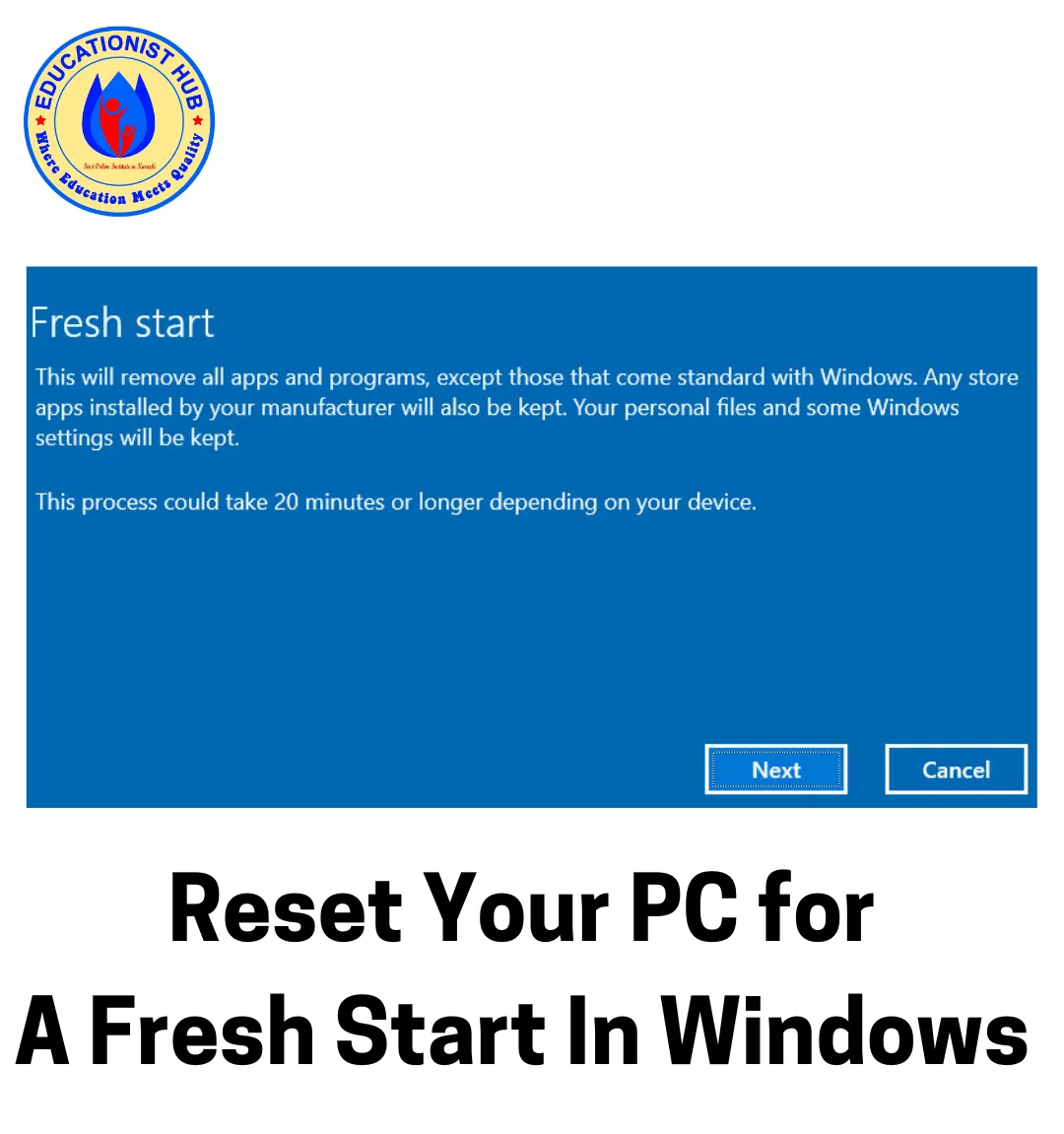
Method #2: Fresh Start (Windows 10’s Hidden Gem)
Not many people know this exists, but it’s tucked inside Windows Security under Device performance & health. Click Fresh Start, then Get started.
What makes this different from a regular reset is that it’s ruthless about bloatware — all that manufacturer-installed junk from Dell, HP, or Lenovo that came preloaded and never asked permission. It downloads a clean version of Windows 10 and strips out third-party software you probably never wanted anyway.
Method #3: Bootable USB (When Windows Won’t Even Boot)
Sometimes your PC won’t boot at all, and Settings simply isn’t reachable. This is where a bootable USB becomes your lifeline.
On a working computer, download Microsoft’s Media Creation Tool, choose “Create installation media for another PC,” and select your USB drive. Once it’s built, plug it into the broken machine, boot from it, and choose Custom: Install Windows only. You’ll need to delete the old partitions and install onto the unallocated space — just make sure Secure Boot and UEFI are switched on beforehand.
“There Was a Problem Resetting Your PC” — The Fix
This error shows up more than it should. If you hit it, force-shutdown your PC three times during startup to trigger the recovery environment, then go to Troubleshoot > Advanced Options > Command Prompt. From there, run:
DISM /Online /Cleanup-Image /RestoreHealth
SFC /scannow
Give it 15–20 minutes, then try the reset again. It almost always works the second time.
Here’s What to Do After the Reset
Once everything’s wiped clean, run Windows Update immediately, then check Device Manager for any yellow warning icons next to your drivers. While you’re reinstalling apps you actually need, a few things worth setting up again: Microsoft Stream if you use it for work videos, ForticClient VPN for a secure connection, and if your inbox acts up afterward, here’s a fix for Yahoo Mail not loading.
A fresh start doesn’t have to be scary — just do your homework first, pick the right method for your situation, and your PC will feel brand new again.

📰 Meet Our Newest Author: Farhan Ahmed
We are thrilled to welcome Farhan Ahmed, a dynamic addition to our team of seasoned writers at TheEducationistHub.com. Farhan Ahmed is a highly skilled professional with a robust background in the realms of SEO, blogging, and the latest news trends.
🎓 Educational Background: Farhan Ahmed is a proud graduate of Karachi University, holding a Master’s in Business Administration (MBA). This academic foundation has not only equipped Farhan Ahmed with a strategic mindset but has also instilled a deep understanding of business dynamics.
💼 Professional Journey: With an impressive 4 to 5 years of hands-on experience in the field, Farhan Ahmed brings a wealth of expertise to our newsroom. Having navigated the intricacies of SEO and blogging, Farhan Ahmed has honed the art of crafting content that not only engages but also performs exceptionally well in the digital landscape.
📝 Writing Prowess: Farhan Ahmed specializes in distilling complex information into digestible and engaging pieces. Their knack for identifying and covering trending news and updates ensures that our readers stay well-informed on the latest developments across various domains.
🌐 Digital Savvy: In an era where the online landscape is ever-evolving, Farhan Ahmed is well-versed in leveraging digital tools and strategies to maximize the reach and impact of their work. Their proficiency in SEO ensures that our content not only informs but is also easily discoverable by a wider audience.
We are confident that Farhan Ahmed will play a pivotal role in enhancing the quality and relevance of the content we deliver to our readers. Join us in extending a warm welcome to Farhan Ahmed as we look forward to an exciting journey of insightful updates and news coverage.
Stay tuned for the latest from TheEducationistHub.com with Farhan Ahmed on board!



Leave a Reply