Have you decided to cancel YouTube TV subscription or you don’t need it anymore? Maybe the price went up again, or you want to switch to a different streaming service. Whatever your reason, I’m here to guide you through the cancellation process in a very easy manner.
You can easily cancel your YouTube TV subscription once you know where to look. There are no heavy cancellation fees, and you won’t lose access immediately. Let me show you in this article how to do it.
What You Need to Know Before Pressing That YouTube Cancel Button?
Before I discuss the methods, here are a few points you must know:
- You won’t pay any penalties. Unlike some cable companies that make you jump through hoops, YouTube TV lets you cancel whenever you want without charging extra fees.
- Your service doesn’t stop at a same time. After you cancel, you’ll still have access until the end of your current billing period. If you paid for the month, you get to use it for the entire month. I think it’s fair enough for anyone.
- iPhone and iPad users, pay attention. You can’t cancel directly through the YouTube TV app on iOS devices. I know, it’s annoying. Apple’s rules require you to use a web browser instead. I’ll explain the workaround below.
- Your recordings stick around for a bit. All those shows you saved in your Library? They’ll be available for 21 days after your subscription ends. That gives you some breathing room to watch anything important.
Method #1: Cancellation Through Your Web Browser

This method is the best on your computer, laptop, or even your phone’s browser. It’s one of the easiest way to cancel.
Here’s the step-by-step procedure you can follow:
- Open your browser and head to tv.youtube.com. Make sure you’re signed into the Google Account connected to your YouTube TV subscription.
- Look at the top-right corner and click on your profile picture. You’ll see a menu pop up.
- Click on “Settings” from that menu.
- Find and click on “Membership.” This is where all your subscription details live.
- You’ll see a “Manage” or “Manage membership” button under your current plan. Tap it.
- Now you should see a “Cancel Membership” button. Click that.
YouTube TV might try to convince you to stay with some offers or remind you what you’ll lose. Just follow through the instructions until you confirm the cancellation.
Method #2: Cancellation on Your Android Phone or Tablet
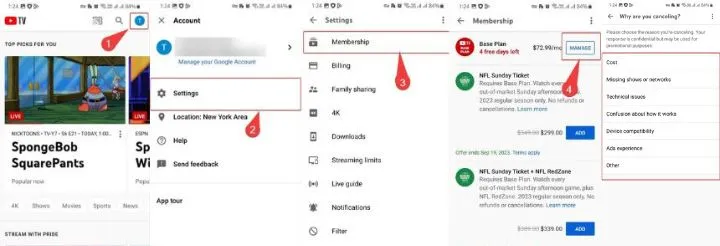
If you’re an Android user, the YouTube TV app makes your work more easy.
- Open the YouTube TV app on your device.
- Click your profile picture in the top-right corner.
- Tap “Settings,” then select “Membership.”
- Click “Manage membership.” This will take you to the Google Play Store.
- You’ll see “Cancel Membership” there. Press it and confirm.
This is the 2nd method, done and dusted.
Method #3: Canceling on iPhone or iPad
Here’s where things get a little different for iOS users. Because of how Apple handles subscriptions, you can’t cancel through the app itself.
Instead, you need to use Safari or any other browser on your iPhone or iPad:
- Open Safari (or Chrome, Firefox, whatever you prefer).
- Go to tv.youtube.com and sign in with your account.
- From here, follow the complete same steps I mentioned in Method 1 for web browsers.
I know it’s an extra step, but it only takes a minute once you know the trick. Similar to how you’d activate YouTube with a TV code, sometimes these streaming services have their quirks depending on your device.
Are You Not Ready to Fully Commit? Try Pausing Instead
Here’s a point many people don’t know that YouTube TV actually lets you pause your membership instead of complete cancellation.
You can pause for anywhere from 4 weeks to 6 months. During that time, you won’t be charged, and all your settings and recordings are saved. You just won’t be able to watch anything until you unpause.
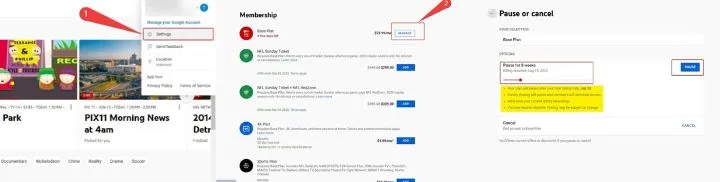
To pause your membership, start following the cancellation steps above. Before you hit that final cancel button, you should see an option to “Pause membership” instead. It’s better to consider if you’re just taking a break rather than leaving for good.
This feature is very easy to do if you deal with tight finances temporarily or just want to cut back on streaming for a while. Many streaming platforms offer similar flexibility these days. For example, if you’re juggling multiple services like DirecTV Stream, it’s better to check if they have pause options too.
What Happens After You Cancel
Once you’ve successfully canceled, here’s what to expect:
- You’ll still have full access to YouTube TV until your current billing period ends. If you canceled on the 10th but your billing cycle ends on the 30th, you can watch until the 30th.
- Your membership page will show you exactly when your access ends. Search for something like “Access until [date].”
- All your recorded shows and movies stay in your Library for 21 days after that end date. After 21 days, they’re gone permanently, so make sure to watch anything important.
- If you decide to come back later, you can always resubscribe. Just know that your old Library won’t magically reappear.
Quick Answers to Common Public Questions
Will I get money back if I cancel mid-month? No, YouTube TV doesn’t do partial refunds. But remember, you keep access until your paid period ends, so you’ll not lose anything.
Why can’t I find the cancel option in my iPhone app? Apple’s rules require all subscription cancellations to happen outside the app. Only use Safari or another browser, and you’ll find it easily.
Can I cancel during my free trial? Yes, If you cancel during a trial, you won’t be charged, and you’ll usually keep access until the trial period ends naturally.
Do You Want to Switch Some Other Service?
If you’re canceling because you want to try a different service, there are plenty of options out there. You might consider exploring other streaming platforms, and knowing how to manage them is helpful. Whether you’re looking to activate Netflix with a TV code, set up BBC iPlayer, or even activate Channel 4 on your TV, the process is usually pretty similar once you get the hang of one platform.
For international options, services like DSTV Stream offer different content libraries. And if you’re looking to access streaming on different devices, you might want to check out options like downloading the Apple TV app for Android.
Last Words
YouTube TV Cancellation process isn’t really complicated once you know where to click. The web browser method works for everyone, Android users have it built into their app, and iOS users just need to remember to use Safari.
The most important thing is that you’re not locked in. There’s no penalties, no surprise charges, and your access continues until you’ve used what you paid for. That’s how it should be.
If you found this guide helpful, bookmark it for future reference. And if you manage multiple streaming subscriptions, it’s better to understand the cancellation process for each one so you’re never stuck paying for something you don’t want.
I give you best wishes with whatever streaming service you select next!

📰 Meet Our Newest Author: Farhan Ahmed
We are thrilled to welcome Farhan Ahmed, a dynamic addition to our team of seasoned writers at TheEducationistHub.com. Farhan Ahmed is a highly skilled professional with a robust background in the realms of SEO, blogging, and the latest news trends.
🎓 Educational Background: Farhan Ahmed is a proud graduate of Karachi University, holding a Master’s in Business Administration (MBA). This academic foundation has not only equipped Farhan Ahmed with a strategic mindset but has also instilled a deep understanding of business dynamics.
💼 Professional Journey: With an impressive 4 to 5 years of hands-on experience in the field, Farhan Ahmed brings a wealth of expertise to our newsroom. Having navigated the intricacies of SEO and blogging, Farhan Ahmed has honed the art of crafting content that not only engages but also performs exceptionally well in the digital landscape.
📝 Writing Prowess: Farhan Ahmed specializes in distilling complex information into digestible and engaging pieces. Their knack for identifying and covering trending news and updates ensures that our readers stay well-informed on the latest developments across various domains.
🌐 Digital Savvy: In an era where the online landscape is ever-evolving, Farhan Ahmed is well-versed in leveraging digital tools and strategies to maximize the reach and impact of their work. Their proficiency in SEO ensures that our content not only informs but is also easily discoverable by a wider audience.
We are confident that Farhan Ahmed will play a pivotal role in enhancing the quality and relevance of the content we deliver to our readers. Join us in extending a warm welcome to Farhan Ahmed as we look forward to an exciting journey of insightful updates and news coverage.
Stay tuned for the latest from TheEducationistHub.com with Farhan Ahmed on board!