Last Updated on: 6th February 2026, 09:34 pm
If you want to get your Roku device up and running, you should start with one essential step: logging into your Roku account on your TV. This process links your device to your personal account, unlocking access to all your channels and preferences. If you hold a remote and stare at a screen asking for a link code, don’t worry. This article will guide you through every step, for every situation.
What is Roku Login System: It’s All About the Code
Unlike logging into a website, signing into your Roku account on your TV uses a simple two-part process. Your TV or Roku player displays a unique activation code. You then use a separate device, like a smartphone or computer, to link that code to your account. You’ll need yo lkur email address and password for your Roku account in hand. Also check my step-by-step guide to activate channel 4 on your TV with a code.
What Are The Requirements Before You Start:
-
Your Roku TV or streaming device connected to the internet.
-
A smartphone, tablet, or computer with a web browser.
-
Your Roku account credentials (the email address and password you signed up with).
Method 1: The Standard Login & Activation Process
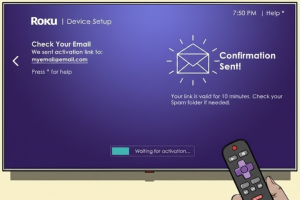
This is the most common method for setting up a new device or signing in after a factory reset.
Step #1: Get Your Link Code on the TV Screen
-
Turn on your Roku TV or player.
-
Using your remote, navigate to the home screen.
-
You should see an activation screen with a 6-character link code (e.g.,
XDC5Q2). If you don’t, go to Settings > System > About to find the code.
Step #2: Link Your Device on Another Device
-
On your separate smartphone or computer, open a web browser.
-
Go to the right website:
Roku.com/link. -
Carefully type or type the link code shown on your TV into the box on the website. Capitalization matters.
-
Click “Submit.”
Step #3: Enter Your Account Credentials
-
The
Roku.com/linkpage will now ask you to sign in. -
Enter the email address and password for your Roku account.
-
If you’ve forgotten your password, click the “Forgot password?” link to reset your password before continuing.
-
Click “Sign In.”
Step #4: Complete the Link
After signing in, your TV will refresh automatically within 30 seconds. A success message will appear, and your device will begin updating and adding any channels associated with your account. You are now logged in.
Here’s how to connect DSTV stream to Smart TV.
Method 2: Using the Roku Mobile App as a Remote
If you have the Roku mobile app installed, it can simplify the process.
-
Always make sure your phone is connected to the same Wi-Fi network as your Roku device.
-
Open the Roku app and tap “Remote.”
-
The app will search for devices. Select your Roku TV or player from the list.
-
The app may prompt you to enter a link code displayed on your TV directly into the app. Follow the on-screen instructions in the app, which will guide you through the Roku.com/link process very easily, often without you need a separate browser.
What to Do If You Can’t Log In: Troubleshooting Steps
Even a simple and easy process can hit a snag. Here’s how to solve common problems.
“Invalid Login” or “Cannot Sign In” Errors
-
Double-Check Credentials: Ensure you’re using the correct email address and password. Passwords are case-sensitive.
-
Reset Your Password: Visit
my.roku.comon a computer and click “Forgot password?” to receive a reset password email. -
Check Your Internet: Both your TV and the device visiting
Roku.com/linkneed an active internet connection.
The Link Code Isn’t Working
-
Code Expired: Link codes time out. If it’s been more than 10-15 minutes, go back to the TV screen. A new code will have generated. Use the new one.
-
Typo: Re-enter the code carefully. Confuse a
0for anOor a1for anI? Try again. -
Restart Both Devices: Unplug your Roku device from power for 10 seconds, then plug it back in. Also, refresh the browser page on your computer or phone.
No Activation Screen Appears on the TV
-
You need to manually go through your Roku home screen: Press Home on your remote, then go to Settings > System > About. Your linking information and code should be here.
-
Your device may already be linked. Go to Settings > Account to see your account status.
The Last Resort: Factory Reset
If all else fails and you cannot recover your account, a factory reset will wipe the device and start the setup process from scratch.
-
Go to Settings > System > Advanced system settings > Factory reset.
-
Follow the on-screen instructions. Warning: This removes all installed channels and personal settings.
-
After the reset, the initial setup and activation screen will appear, which allows you to start the login process fresh.
You can also activate Proton VPN with a code on Android TV & Fire Stick.
Frequently Asked Questions
Q: Do I need a credit card to create a Roku account?
A: Yes, a credit card or PayPal account is required to create a Roku account, even for free channels. This is for age verification and to manage any potential purchases. You are not charged without authorization.
Q: I bought a used Roku. How do I log in with my account?
A: The previous owner must remove it from their account first. If they can’t, you will need to perform a factory reset (see steps above). This clears the device, allowing you to link it to your own Roku account.
Q: Can I be logged into the same account on multiple TVs?
A: Yes, you can link multiple Roku devices to a single Roku account. Your channel lineup and preferences will sync across devices, though you may need to sign into individual channel apps (like Netflix) separately on each one.
Q: What’s the difference between my Roku account password and my PIN?
A: Your account password is used to sign in to your account online and for activation. Your PIN is a separate 4-digit code used to authorize purchases or restrict access to mature channels, set up in Settings > Parental controls.
Q: The screen says “Cannot connect to Roku.com.” What now?
A: This is almost always an internet issue. Check your TV’s network connection under Settings > Network. Restart your router. If the problem persists, try using your smartphone’s mobile data to visit Roku.com/link instead of your home Wi-Fi.
My Final Remarks for a Smooth Experience
-
Bookmark It: Save
Roku.com/linkin your browser for easy access in the future. -
Keep Credentials Safe: Store your Roku account email and password in a secure password manager.
-
Update Regularly: Keep your Roku OS updated. Go to Settings > System > System update to check manually. Updates often fix login and performance issues.
After you follow this step-step guide, you should be able to successfully link your device and start streaming. The process is made to be secure and simple once you know the flow between the code on your TV screen and the website on your other device. If you continue to have trouble, the official Roku support site has further resources and a help community.

📰 Meet Our Newest Author: Farhan Ahmed
We are thrilled to welcome Farhan Ahmed, a dynamic addition to our team of seasoned writers at TheEducationistHub.com. Farhan Ahmed is a highly skilled professional with a robust background in the realms of SEO, blogging, and the latest news trends.
🎓 Educational Background: Farhan Ahmed is a proud graduate of Karachi University, holding a Master’s in Business Administration (MBA). This academic foundation has not only equipped Farhan Ahmed with a strategic mindset but has also instilled a deep understanding of business dynamics.
💼 Professional Journey: With an impressive 4 to 5 years of hands-on experience in the field, Farhan Ahmed brings a wealth of expertise to our newsroom. Having navigated the intricacies of SEO and blogging, Farhan Ahmed has honed the art of crafting content that not only engages but also performs exceptionally well in the digital landscape.
📝 Writing Prowess: Farhan Ahmed specializes in distilling complex information into digestible and engaging pieces. Their knack for identifying and covering trending news and updates ensures that our readers stay well-informed on the latest developments across various domains.
🌐 Digital Savvy: In an era where the online landscape is ever-evolving, Farhan Ahmed is well-versed in leveraging digital tools and strategies to maximize the reach and impact of their work. Their proficiency in SEO ensures that our content not only informs but is also easily discoverable by a wider audience.
We are confident that Farhan Ahmed will play a pivotal role in enhancing the quality and relevance of the content we deliver to our readers. Join us in extending a warm welcome to Farhan Ahmed as we look forward to an exciting journey of insightful updates and news coverage.
Stay tuned for the latest from TheEducationistHub.com with Farhan Ahmed on board!