
Last Updated on: 20th February 2026, 10:17 pm
Is your Bluetooth missing, failing to connect, or acting unpredictably in Windows 11? A corrupted or outdated driver is most of the time the culprit. This guide gives you clear, step-by-step methods to successfully reinstall your Bluetooth driver, restoring wireless connectivity for your headphones, speakers, mice, and other devices.
Here Are The Essential Pre-Checks Before You Start
Your first step shouldn’t be to attempt a full reinstall. Let’s quickly address some simpler issues.
-
Verify Physical Switches and Airplane Mode: Many laptops have a physical switch or function key (like Fn + F5) to toggle Bluetooth. Always make sure it’s on. Also, check that Airplane Mode is turned off in your notification center.
-
Restart Your Computer: A simple restart can resolve many temporary glitches by refreshing the system state and driver processes.
-
Run the Built-in Troubleshooter: Windows 11 includes automated diagnostic tools. Go to Settings > System > Troubleshoot > Other troubleshooters. Find “Bluetooth” and run the troubleshooter. It can often identify and fix common problems automatically.
-
Remove and Re-pair Your Device: In Settings > Bluetooth & devices, find the problematic device, select the three dots (…), and choose Remove device. Then, put your accessory back into pairing mode and add it again. Adjust your display brightness settings easily in Windows 11 from here.
If these steps don’t resolve your issue, proceed with the driver reinstallation methods below.
Method #1: Reinstall Driver via Device Manager (Standard Method)
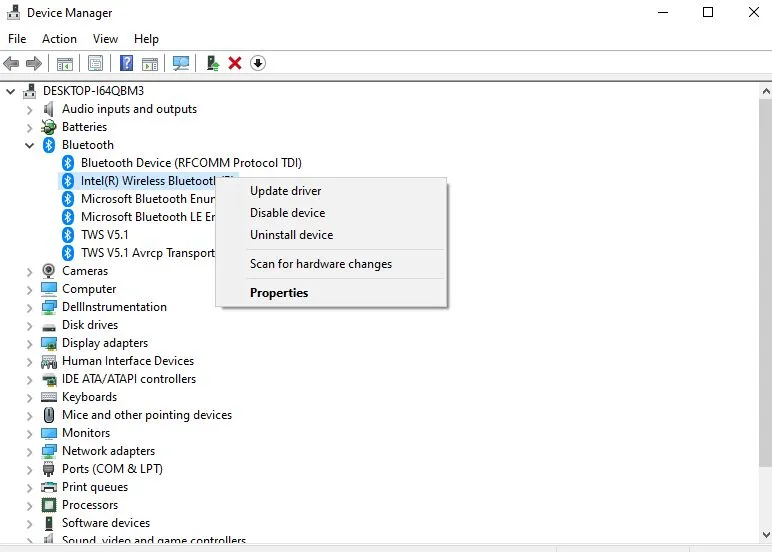
Device Manager is Windows’ core tool for managing hardware drivers. This method is the best for most situations.
-
Open Device Manager: Right-click the Start button and select Device Manager from the menu.
-
Locate Your Bluetooth Adapter: Expand the “Bluetooth” category. You will see one or more entries, such as “Intel(R) Wireless Bluetooth,” “Realtek Bluetooth Adapter,” or a generic name.
-
Uninstall the Current Driver: Right-click on your Bluetooth adapter and select Uninstall device. A critical dialog box will appear.
-
Enable the Important Option: Check the box that says “Attempt to remove the driver software for this device.” This ensures a clean removal. Click Uninstall.
-
Scan for Hardware Changes: After uninstallation, your Bluetooth adapter may disappear from the list. At the top of the Device Manager window, click on the Action menu and select Scan for hardware changes. Windows will detect the missing hardware and attempt to reinstall a driver automatically from its local cache or via Windows Update.
-
Restart Your Computer: A final restart is necessary to complete the installation and initialize the new driver.
Method #2: Reinstall via Windows Update
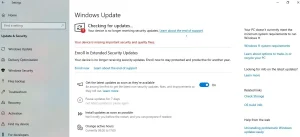
Windows Update frequently provides certified driver updates. This is a very simple and automated approach.
-
Access Windows Update Settings: Navigate to Settings > Windows Update.
-
Check for Updates: Click Check for updates. Windows will download and install important updates, which often include hardware drivers.
-
Check Advanced Options: After the main update check, go to Advanced options > Optional updates. Here, you might find a Driver update for your Bluetooth hardware. If present, select and install it.
-
Restart if prompted.
Method #3: Clean Reinstall from the Manufacturer’s Website
For the most stable and compatible driver, especially after major Windows updates, get it directly from your PC’s manufacturer.
-
Identify Your Hardware: You need your PC’s exact model number (e.g., Dell XPS 15 9530, HP Spectre x360 14). Check the bottom of your laptop or your original purchase documentation.
-
Visit Support Site: Go to the support website of your manufacturer (Dell, HP, Lenovo, ASUS, etc.).
-
Locate Drivers: Enter your model number in the support section and navigate to the Drivers & Downloads area. Find the Bluetooth Driver or Wireless Driver category.
-
Download and Install: Download the latest driver installer (usually a .exe file) designed for Windows 11. Run the file and follow the on-screen instructions. A system restart will likely be required. You can also read a guide to turn airplane mode on or off in Windows 10.
Here’s How to Troubleshoot Persistent Problems
If Bluetooth is still not working after a reinstall, consider these less common solutions:
-
Show Hidden Devices in Device Manager: In Device Manager, click View > Show hidden devices. Look for any grayed-out or duplicate Bluetooth entries, right-click, and uninstall them.
-
USB 3.0 Interference: If your Bluetooth adapter is on a desktop and you have USB 3.0 ports or devices nearby, they can cause interference. Try using a USB extension cable to move the Bluetooth dongle away from USB 3.0 ports or hubs.
-
System File Check: Corrupted Windows system files can affect drivers. Open Command Prompt as Administrator and run:
sfc /scannow. This will scan and repair protected system files.
Frequently Asked Questions
Q: What’s the difference between updating and reinstalling a Bluetooth driver?
A: Updating replaces your current driver with a newer version. Reinstalling removes the current driver entirely and installs it again, which can fix corruption or incorrect configuration. The guide above focuses on a clean reinstall.
Q: My Bluetooth icon is missing from the taskbar. Will this help?
A: Yes, a missing icon is a common symptom of a driver issue. Reinstalling the driver using Method 1 should restore it. You can also manually enable it in Settings > Bluetooth & devices > More Bluetooth settings (under “Related Settings”).
Q: After reinstalling, Windows installed a “Generic Bluetooth Adapter.” What now?
A: A generic driver means Windows couldn’t find the specific driver for your hardware. It will provide basic functionality, but for full features, you should use Method 3 to install the manufacturer’s driver directly.
Q: Should I use third-party driver update software?
A: It’s generally not recommended. While convenient, these tools can sometimes install incorrect or unstable drivers. The safest methods are using Windows Update or getting drivers directly from your manufacturer’s website, as outlined in this guide.
Final Steps and Verification
After completing any of the methods above and restarting your computer, verification is key.
-
Return to Settings > Bluetooth & devices. Your Bluetooth should now be turn-on-able.
-
Try pairing with a known working device. The process should be smooth and stable.
-
If problems still there, consider visiting the official Microsoft support forums, where you can get community or official help for unique system configurations.
After you follow this structured approach i.e., from basic checks to a clean, manufacturer-sourced reinstall—you can systematically solve the vast majority of Bluetooth driver issues in Windows 11 and regain reliable wireless connectivity.

📰 Meet Our Newest Author: Farhan Ahmed
We are thrilled to welcome Farhan Ahmed, a dynamic addition to our team of seasoned writers at TheEducationistHub.com. Farhan Ahmed is a highly skilled professional with a robust background in the realms of SEO, blogging, and the latest news trends.
🎓 Educational Background: Farhan Ahmed is a proud graduate of Karachi University, holding a Master’s in Business Administration (MBA). This academic foundation has not only equipped Farhan Ahmed with a strategic mindset but has also instilled a deep understanding of business dynamics.
💼 Professional Journey: With an impressive 4 to 5 years of hands-on experience in the field, Farhan Ahmed brings a wealth of expertise to our newsroom. Having navigated the intricacies of SEO and blogging, Farhan Ahmed has honed the art of crafting content that not only engages but also performs exceptionally well in the digital landscape.
📝 Writing Prowess: Farhan Ahmed specializes in distilling complex information into digestible and engaging pieces. Their knack for identifying and covering trending news and updates ensures that our readers stay well-informed on the latest developments across various domains.
🌐 Digital Savvy: In an era where the online landscape is ever-evolving, Farhan Ahmed is well-versed in leveraging digital tools and strategies to maximize the reach and impact of their work. Their proficiency in SEO ensures that our content not only informs but is also easily discoverable by a wider audience.
We are confident that Farhan Ahmed will play a pivotal role in enhancing the quality and relevance of the content we deliver to our readers. Join us in extending a warm welcome to Farhan Ahmed as we look forward to an exciting journey of insightful updates and news coverage.
Stay tuned for the latest from TheEducationistHub.com with Farhan Ahmed on board!