
Last Updated on: 20th February 2026, 10:10 pm
If you’re looking to run an effective, self-hosted AI agent formerly known as Clawdbot (now OpenClaw) on your Windows PC, you should read this article. This guide provides clear, step-by-step instructions created for the 2026 software industry, helping you navigate its unique setup and powerful capabilities for tasks like automated SEO and messaging.
What is Clawdbot, Moltbot, or OpenClaw?
You first need to clarify the name, as this is causing the main confusion. The project you’re looking for has evolved.
-
Clawdbot was its original, popular name.
-
Moltbot was a brief transitional name.
-
OpenClaw is its current, official open-source name as of 2026.
In this article, I’ll use OpenClaw, but the installation commands and core functionality remain consistent with what you remember as Clawdbot. It is a locally hosted, task-executing AI agent created by Peter Steinberger. This means it runs on your own machine, connecting to AI models and other services to automate complex workflows without depending on the cloud. You can also check how to install and download Forticlient VPN on Windows.
What Are The Requirements Before You Start?
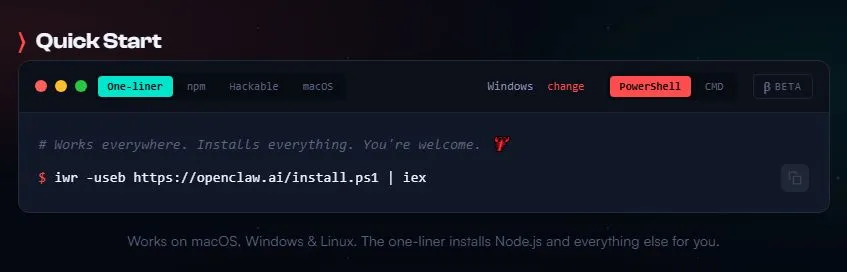
You cannot install OpenClaw natively on Windows. It requires a Linux environment, which we will set up using Windows Subsystem for Linux 2 (WSL2). This is the foundational and most important step.
1. System Requirements:
-
Windows 10 (Version 2004 or higher) or Windows 11.
-
At least 4GB of RAM (8GB or more is strongly recommended).
-
Administrator access to your PC.
-
A stable internet connection.
2. Required Accounts & Keys:
-
An Anthropic API key (for Claude models) and/or an OpenAI API key. This is mandatory, as it provides the “brain” for the agent. You must have your keys ready for the setup wizard.
Part 1: Set Up Your Linux Environment (WSL2)
Step #1: Install WSL2
Open PowerShell or Windows Terminal as an Administrator and run:
wsl --install
This command installs WSL2 and a default Ubuntu distribution by default. Restart your computer when prompted.
Step #2: Launch & Update Ubuntu
After restarting, find “Ubuntu” in your Start Menu and launch it. A terminal window will open, finishing the installation. You will create a UNIX username and password.
Once set up, update the package list:
sudo apt update && sudo apt upgrade -y
Part 2: Install the OpenClaw (Clawdbot)
Step #3: Install Node.js 22+
OpenClaw requires Node.js version 22 or higher. In your Ubuntu terminal, run:
curl -fsSL https://deb.nodesource.com/setup_22.x | sudo -E bash -
sudo apt-get install -y nodejs
Verify the installation: node --version should show v22.x or higher.
Step #4: Run the One-Click Install Script
This is the official, recommended method. In your Ubuntu terminal, execute:
curl -fsSL https://clawd.bot/install.sh | bash
This script handles the core installation. When it completes, you need to run the onboard wizard.
Step #5: Complete Setup with the Onboard Wizard
Run the following command to configure the agent and, crucially, install it as a persistent background service:
clawdbot onboard --install-daemon
-
The wizard will ask for your Anthropic and/or OpenAI API keys.
-
Follow the prompts to set initial preferences.
-
The
--install-daemonflag is key for 2026 installations. It ensures OpenClaw runs continuously, even when you close the terminal.
Part 3: Access and Use the OpenClaw
Step #6: Access the Local Dashboard
Once the daemon is running, OpenClaw’s gateway is active on port 18789.
-
Open your Windows web browser (Chrome, Firefox, Edge).
-
Navigate to:
http://127.0.0.1:18789
You should see the OpenClaw control dashboard. This is your central hub for managing tasks and connections.
Step #7: Critical 2026 Security Configuration
A major change in 2026 is the enforced removal of the insecure auth: none setting. You must configure authentication.
-
In the dashboard, go to Settings > Gateway.
-
Set a username and a strong password. Your local connection will now require these credentials.
-
This step is non-optional. Failing to set auth will result in connection errors, as the software now defaults to a secure state.
Part 4: Practical Applications and Next Steps
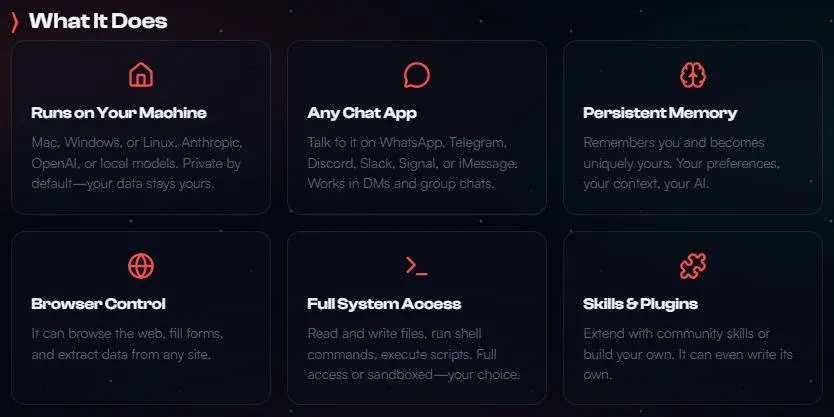
While OpenClaw runs, you can connect it to various services via its Skills system (MCP).
-
Automate SEO Workflows: Connect OpenClaw to browser automation skills to scrape SERP data, generate content briefs, and even publish directly to a WordPress API.
-
Connect Messaging Apps: Use community skills to link the agent to WhatsApp, Telegram, or Discord, allowing for automated responses and notifications.
-
Schedule Monitoring Tasks: Set up the agent to run scheduled monitoring tasks for keyword rank tracking or site performance.
You should remember the human-in-the-loop principle: use automation for drafting and data gathering, but always apply human review for final approval and strategy.
Here’s how to activate Windows security on your device
What Are The Common Troubleshooting Issues?
-
“Failed to start service” or
systemd not availableerror in WSL:
This is common. Edit the WSL configuration file:sudo nano /etc/wsl.confAdd these lines, save (
Ctrl+X, thenY), and restart WSL (wsl --shutdownin PowerShell, then reopen Ubuntu):[boot] systemd=true -
Dashboard not loading at
http://127.0.0.1:18789:
Always make sure the daemon is running. In Ubuntu, runclawdbot doctorto run a diagnostic check. Also, verify you configured authentication as per Step 7. -
“Invalid API Key” errors:
Re-run the configuration wizard without reinstalling:clawdbot onboard. Double-check your API keys for any typos or extra spaces.
Important Security and Cost Notes
-
Security Warnings: As a powerful local agent with potential root access and file access, only install OpenClaw on machines you trust. Never expose port
18789to the public internet without strong authentication and a firewall, as Shodan exposure of instances is a known risk. -
System Cost: You will incur costs based on your API usage with Anthropic/OpenAI. For heavy workloads, consider running OpenClaw on a dedicated, always-on machine like a Mac Mini.
My Last Words
After following my step-by-step guide, you will have successfully installed a sophisticated local AI automation agent. Now you can start with simple tasks, check out the available skills, and gradually build more complex workflows based on your needs.

📰 Meet Our Newest Author: Farhan Ahmed
We are thrilled to welcome Farhan Ahmed, a dynamic addition to our team of seasoned writers at TheEducationistHub.com. Farhan Ahmed is a highly skilled professional with a robust background in the realms of SEO, blogging, and the latest news trends.
🎓 Educational Background: Farhan Ahmed is a proud graduate of Karachi University, holding a Master’s in Business Administration (MBA). This academic foundation has not only equipped Farhan Ahmed with a strategic mindset but has also instilled a deep understanding of business dynamics.
💼 Professional Journey: With an impressive 4 to 5 years of hands-on experience in the field, Farhan Ahmed brings a wealth of expertise to our newsroom. Having navigated the intricacies of SEO and blogging, Farhan Ahmed has honed the art of crafting content that not only engages but also performs exceptionally well in the digital landscape.
📝 Writing Prowess: Farhan Ahmed specializes in distilling complex information into digestible and engaging pieces. Their knack for identifying and covering trending news and updates ensures that our readers stay well-informed on the latest developments across various domains.
🌐 Digital Savvy: In an era where the online landscape is ever-evolving, Farhan Ahmed is well-versed in leveraging digital tools and strategies to maximize the reach and impact of their work. Their proficiency in SEO ensures that our content not only informs but is also easily discoverable by a wider audience.
We are confident that Farhan Ahmed will play a pivotal role in enhancing the quality and relevance of the content we deliver to our readers. Join us in extending a warm welcome to Farhan Ahmed as we look forward to an exciting journey of insightful updates and news coverage.
Stay tuned for the latest from TheEducationistHub.com with Farhan Ahmed on board!