
Last Updated on: 1st January 2026, 01:22 pm
If you’ve ever needed to quickly disconnect from all your wireless connections at a single time, Airplane Mode is your best friend. Whether you’re sitting on a plane, trying to save battery, or just turn off your notifications, want to know how to control this feature can make your life easier.
Let me tell you everything you need to know about how to use Airplane Mode on Windows 10.
What Is Airplane Mode?
You can think of Airplane Mode as a master power switch for all your wireless connections. When you flip it on, Windows 10 quickly turns off Wi-Fi, Bluetooth, and if your device has it, cellular data. It’s like you can put your computer in a bubble where no object can connect wirelessly.
Originally made for air travel (hence the name), it’s basically useful in variety of everyday situations. Maybe your laptop battery is low and you need every extra minute. Or perhaps you want to focus on work without constant notification pings. Some people even use it as a quick fix when their wireless connections acts as a weird.
You can also check how to activate Windows security on your device.
The #1 Fastest Method: You Can Use Action Center
This is hands-down the quickest method, and it’s what I use very often.
- Look at the bottom-right corner of your screen, near the clock. You’ll see a notification icon that looks like a speech bubble. Click on that, or if you prefer keyboard shortcuts, press Windows Key + A.
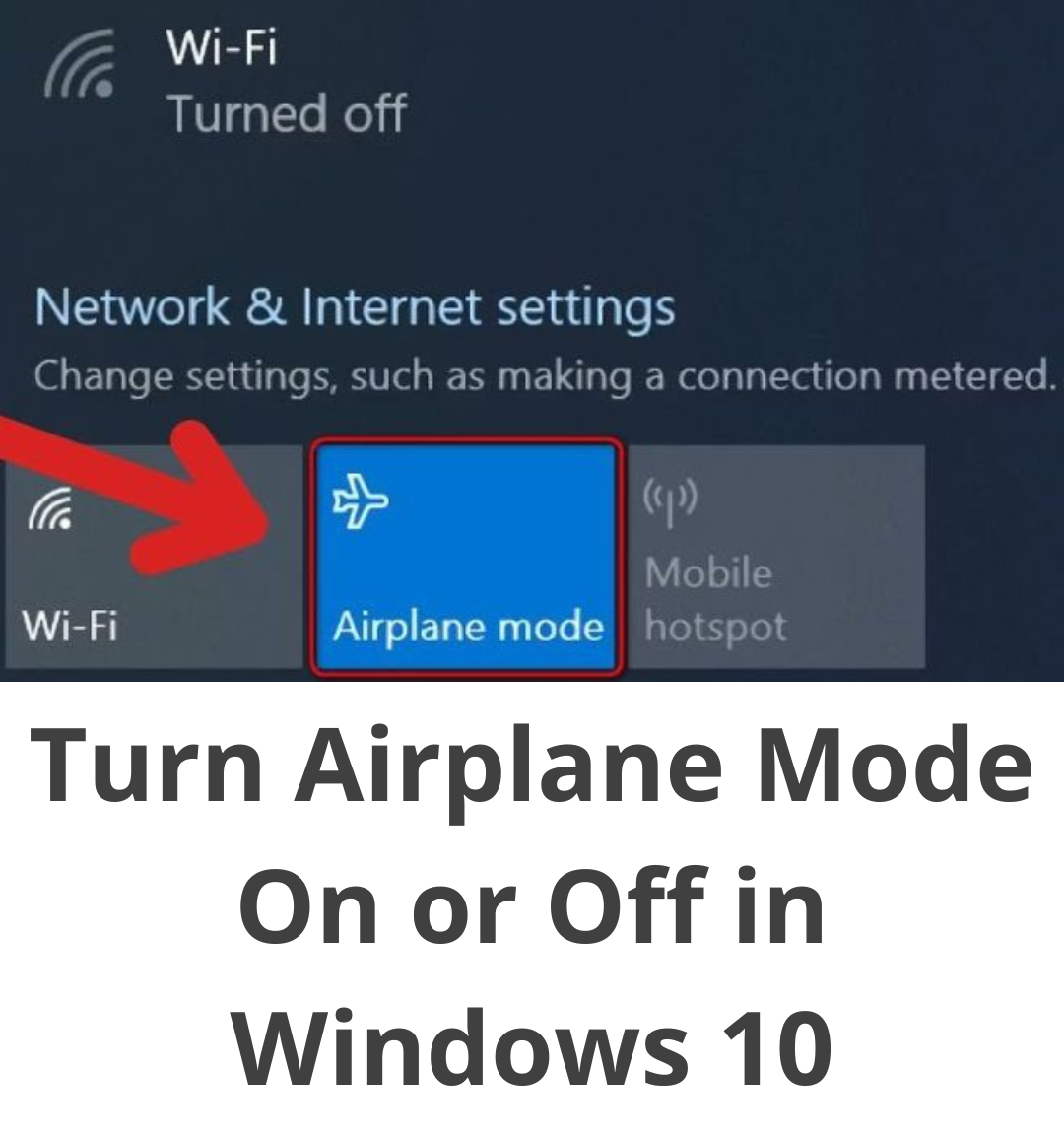
- A panel slides out from the right side. This is your Action Center, and you’ll see several tiles representing quick settings. Find the one labeled “Airplane Mode” with an airplane icon on it.
- Click that tile once. Done. Your wireless connections shut off immediately, and you’ll see a brief notification confirming the change. Click it again whenever you want to turn everything back on.
- If you can’t see the Airplane Mode tile then click “Expand” at the bottom of the Action Center to show all available quick actions.
The Detailed Approach: Settings App
When I need more control over my connections, I head to the Settings app.
- Press Windows Key + I to open Settings, or click the Start button and select the gear icon. From there, click on “Network & Internet.”
- On the left sidebar, you’ll see “Airplane Mode” as one of the options. Click it, and you’ll land on a page with a toggle switch at the top. Slide it to turn Airplane Mode on or off.
Here’s where this method becomes more interesting: even with Airplane Mode enabled, you can turn Wi-Fi or Bluetooth back on individually from this same page. This comes in handy when you’re on a flight with Wi-Fi available but want to keep other radios off, or when you want to use Bluetooth headphones without connecting to any networks.
The System Tray Shortcut
There’s also a quick method through your taskbar’s notification area.
- Click the network icon in your system tray (bottom-right, it looks like a computer monitor or Wi-Fi symbol). A menu pops up showing available networks and connection options.
- At the bottom of this menu, you should see an Airplane Mode button. Click it to toggle the feature on or off. It’s not always visible depend on your system configuration, but when it’s there, it’s simple.
Also Check, Step-by-Step guide for what is Microsoft Stream and how to use It.
Use The Keyboard Shortcuts
Some laptops have a dedicated Airplane Mode key, usually accessed by holding the Fn key and pressing one of the function keys (commonly F2 or F12). The key typically has an airplane symbol on it.
The real key combination varies by manufacturer, so check your laptop’s manual or look for the airplane icon on your keyboard.
When Airplane Mode Gets Stuck
I’ve run into this problem before, and it’s frustrating. Sometimes the Airplane Mode toggle gets stuck in the “on” position and won’t budge, or it’s greyed out entirely.
- First, try the simple stuff. Restart your computer. Seriously, this fixes the problem more often than you’d think.
- Check if your laptop has a physical wireless switch on the side or front edge. Some older models have these, and if it’s in the off position, your software controls won’t work.
- Still stuck? Open Device Manager by right-clicking the Start button and selecting it from the menu. Expand “Network adapters,” find your wireless adapter, right-click it, and choose “Update driver.” You can let Windows search automatically for updates.
- If that doesn’t help, you can uninstall the device entirely (it sounds scary, but stay with me). Right-click your wireless adapter again and choose “Uninstall device.” Restart your computer, and Windows will automatically reinstall the driver when it boots back up. This often clears up stubborn issues.
Run Your Network Troubleshooter
Windows 10 has built-in troubleshooting tools that can diagnose and fix common problems automatically.
Go to Settings > Update & Security > Troubleshoot > Additional troubleshooters. Run the “Network Adapter” troubleshooter and let it do its thing. It might identify problems you weren’t aware of.
Here’s how to install and download FortiClient VPN on Windows
The Nuclear Option: Network Reset
When nothing else works, you can perform a complete network reset. This wipes all your network settings back to factory defaults.
Go to Settings > Network & Internet > Status and scroll down to “Network reset.” Click it, then confirm.
Fair warning: this will erase all saved Wi-Fi passwords and network configurations. You’ll need to reconnect to your networks manually afterward. But if Airplane Mode is truly stuck, this usually fixes it.
Controlling Individual Radios
Here’s something not everyone knows that you don’t have to turn everything back on at once.
With Airplane Mode active, open the Action Center again. You can click the Wi-Fi or Bluetooth tiles to turn just those back on while leaving Airplane Mode technically enabled. This gives you fine-grained control over your connections.
Why Use Airplane Mode Outside of Planes?
I use Airplane Mode on regular basis, even on the ground. When I’m working on something that requires deep focus, turn off all wireless connections eliminates every possible distraction. No emails, no messages, no notifications. Just me and my work.
Battery life is another big reason. If you’re running low on power and don’t have a charger nearby, Airplane Mode can squeeze out significant extra time by preventing your computer from continuous search for networks and maintain connections.
It’s also useful for troubleshooting. When your wireless connections misbehave, toggle Airplane Mode on and off can reset everything cleanly without any full restart requirement.
My Final Thoughts
Airplane Mode is one of those features that looks like simple on the surface but becomes incredibly useful once you understand all the ways to control it. Whether you’re using the lightning-fast Action Center method, know about the Settings for precise control, or troubleshooting a stuck toggle, you now have the knowledge to handle any situation.
The next time you need to disconnect from the world, or just want to save some battery life, you’ll know exactly what to do.

📰 Meet Our Newest Author: Farhan Ahmed
We are thrilled to welcome Farhan Ahmed, a dynamic addition to our team of seasoned writers at TheEducationistHub.com. Farhan Ahmed is a highly skilled professional with a robust background in the realms of SEO, blogging, and the latest news trends.
🎓 Educational Background: Farhan Ahmed is a proud graduate of Karachi University, holding a Master’s in Business Administration (MBA). This academic foundation has not only equipped Farhan Ahmed with a strategic mindset but has also instilled a deep understanding of business dynamics.
💼 Professional Journey: With an impressive 4 to 5 years of hands-on experience in the field, Farhan Ahmed brings a wealth of expertise to our newsroom. Having navigated the intricacies of SEO and blogging, Farhan Ahmed has honed the art of crafting content that not only engages but also performs exceptionally well in the digital landscape.
📝 Writing Prowess: Farhan Ahmed specializes in distilling complex information into digestible and engaging pieces. Their knack for identifying and covering trending news and updates ensures that our readers stay well-informed on the latest developments across various domains.
🌐 Digital Savvy: In an era where the online landscape is ever-evolving, Farhan Ahmed is well-versed in leveraging digital tools and strategies to maximize the reach and impact of their work. Their proficiency in SEO ensures that our content not only informs but is also easily discoverable by a wider audience.
We are confident that Farhan Ahmed will play a pivotal role in enhancing the quality and relevance of the content we deliver to our readers. Join us in extending a warm welcome to Farhan Ahmed as we look forward to an exciting journey of insightful updates and news coverage.
Stay tuned for the latest from TheEducationistHub.com with Farhan Ahmed on board!