Last Updated on: 30th January 2026, 04:32 am
If you stare at a screen that’s way too bright? Or maybe you’re squinting because everything looks dim? I also have been there. Finding the sweet spot for your display brightness isn’t just about comfort i.e. it important for your eyes, your focus, and if you’re on a laptop, how long your battery lasts.
Adjust Display Brightness and Color in Windows 10 and 11
The good news is that Windows gives you many ways to fix this, and most of them take just seconds. I will show you in this guide how to take control of your screen brightness.
Fast Methods to Change Display Brightness Settings
Your Keyboard Is Your Best Friend
Look at the top row of your keyboard where the F1 through F12 keys are. Somewhere up there, you’ll find two keys with sun symbols i.e. one smaller, one bigger. Those are your brightness controls.
On most laptops, hold down the Fn key (you’ll find it near the bottom left, next to Ctrl) and tap those sun keys. Smaller sun dims the screen, bigger sun makes it brighter. Some newer laptops skip the Fn requirement entirely, so just press the sun keys directly. You can give it a try and see how your keyboard works.
This is the method I mostly use 20 times a day. It’s fast and doesn’t pull you away from what you’re doing.
The Quick Settings Trick
Windows 11 users have it easy here. Click any of those small icons in your taskbar’s bottom-right corner that is Wi-Fi, sound, or battery. A panel slides up, and right there at the bottom sits a brightness slider. Drag it wherever you want. It is simple as that.
If you’re using Windows 10 then Click the notification icon (looks like a little message bubble) in your taskbar. You’ll see a brightness tile that cycles through preset levels when you click it. If want finer control then press “Expand” to get an actual slider you can drag. Here’s a guide to turn airplane mode On or Off in Windows 10.
When You Want Exact Control
Sometimes “about this bright” isn’t good enough. Maybe you edit photos or just want to set it to exactly 60%. Visit the Settings app for precision.
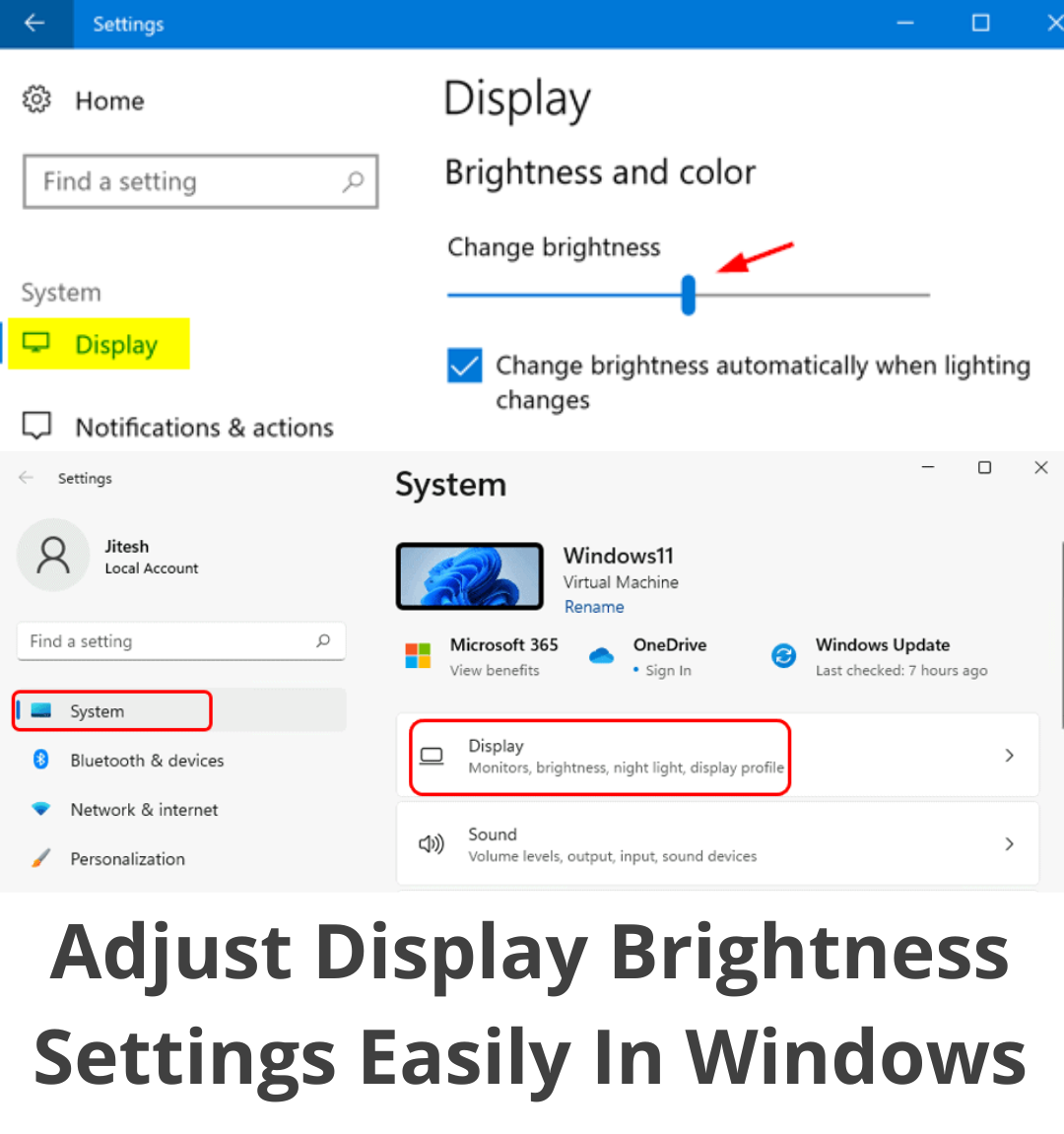
Press the Windows key and I together (Windows key + I). Click System, then Display. You’ll see a brightness slider present under “Brightness & color.” Drag it anywhere from completely dim to blazing bright.
While you’re in this menu, scroll down a bit and check out Night Light. This thing has saved my sleep schedule. It reduces the blue light from your screen, which studies show can mess with your ability to fall asleep. You can set it to turn on automatically at sunset, or pick your own hours. I run mine from 8 PM to 6 AM, and my eyes feel way less tired in the evening.
Here’s How Windows Can Handle It Automatically
Your computer might be smarter than you think. Many laptops and tablets come with an ambient light sensor i.e. a tiny sensor usually hidden near your webcam that detects how bright your room is. Windows can use this to auto-adjust your screen brightness based on your environment.
- Visit the Settings > System > Display and look for “Change brightness automatically when lighting changes.” Flip that toggle on.
Now, full transparency here that I’m not a big fan of this feature. It works, but sometimes it gets overzealous. You’ll be reading something, a cloud passes over the sun, and suddenly your screen dims. It can be distracting. I keep mine off, but plenty of people love it. Worth testing for yourself.
Also Check, how to activate Windows security on your device
How to Fix Some Common Issues
When the Brightness Slider Vanishes
This is weirdly common after Windows updates. You go to adjust brightness and the slider is just… gone. Or it’s there but grayed out and won’t budge.
Here’s the fix that works 90% of the time: your display driver needs updation.
- Right-click your Start button and choose Device Manager. Look for “Display adapters” and click the little arrow next to it.
- Right-click on your graphics card (it’ll say something like Intel, NVIDIA, or AMD) and select “Update driver.”
- Pick “Search automatically for updated driver software.”
Let Windows do its process, then restart your computer. That slider should be back in business.
Brightness Limited on Battery Power
If you’re on a laptop and notice your brightness won’t go above a certain level, check your power settings. Battery Saver mode can cap your maximum brightness to save power.
- Go to Settings > System > Power & battery. Look under “Battery saver” and see if it’s turned on. You can either turn it off or adjust when it activates.
- Also, your power plan is most important if you’re on “Power saver” mode, switch to “Balanced” or “Best performance” for full brightness control.
If Brightness Keeps Changing By Itself
Two things most of the times cause this. First, that Adaptive Brightness feature I mentioned earlier that is; go turn it off in Display settings if it’s bugging you.
Second, and this is sneakier that Content-Adaptive Brightness Control. Some devices use this to save power by adjusting brightness based on what’s really on your screen. White document? Brighter. Dark video? Dimmer. Sounds smart, but it can make watching videos look weird.
You’ll need to disable this in your graphics control panel. Right-click on your desktop and search Intel Graphics Command Center, NVIDIA Control Panel, or AMD Radeon Software, depend on your graphics card. In Intel’s settings, look for “Power” options. In NVIDIA, check under “Adjust desktop color settings.” For AMD, browse the display settings. Find anything related to adaptive brightness or power saving and turn it off.
My Bonus Tip for Battery Life
Do you want your laptop battery to last longer? Drop that brightness. I’m serious that your display is one of the single biggest drain on your battery. Your laptop run at 100% brightness indoors is overkill.

I keep mine around 40-50% when I’m inside, maybe 70% if I’m near a window. The difference in battery life is original. You can easily add an hour or more just by being reasonable with your brightness.
What About Desktop Monitors or PC?
The quick reality check is if you’re using an external monitor, Windows brightness controls usually won’t touch it. You’ll need to use the physical buttons on the monitor itself.
Most monitors have a menu button (sometimes labeled OSD for “on-screen display”). Press it, go to brightness, and adjust from there. A bit old-school, but that’s how it operates.
There is a workaround though which means Microsoft PowerToys is a free tool from Microsoft that includes experimental multi-monitor brightness control. It’s good to checkout if you run multiple displays.
Also Check, Complete Guide About Microsoft Stream
My Daily Setup to Adjust Display Brightness
Since we’re being real here, let me tell you what I actually do. I’ve got my brightness keyboard shortcuts memorized (Fn + F5 and F6 on my laptop). During the day, I run at about 45% brightness. Night Light starts at 7 PM. Adaptive Brightness is off because it annoyed me.
That’s it. It’s nothing fancy, just settings that work for my eyes and my workflow.
Final Thoughts
You can start with those keyboard shortcuts for fast adjustments throughout your day. You can also use the Settings app when you want precision or need to set up Night Light. And if have any problem, update your display driver first which fixes most brightness issues.
Take two minutes right now to find your comfortable brightness level. Your eyes will genuinely thank you, especially if you spend hours in front of this screen every day.

📰 Meet Our Newest Author: Farhan Ahmed
We are thrilled to welcome Farhan Ahmed, a dynamic addition to our team of seasoned writers at TheEducationistHub.com. Farhan Ahmed is a highly skilled professional with a robust background in the realms of SEO, blogging, and the latest news trends.
🎓 Educational Background: Farhan Ahmed is a proud graduate of Karachi University, holding a Master’s in Business Administration (MBA). This academic foundation has not only equipped Farhan Ahmed with a strategic mindset but has also instilled a deep understanding of business dynamics.
💼 Professional Journey: With an impressive 4 to 5 years of hands-on experience in the field, Farhan Ahmed brings a wealth of expertise to our newsroom. Having navigated the intricacies of SEO and blogging, Farhan Ahmed has honed the art of crafting content that not only engages but also performs exceptionally well in the digital landscape.
📝 Writing Prowess: Farhan Ahmed specializes in distilling complex information into digestible and engaging pieces. Their knack for identifying and covering trending news and updates ensures that our readers stay well-informed on the latest developments across various domains.
🌐 Digital Savvy: In an era where the online landscape is ever-evolving, Farhan Ahmed is well-versed in leveraging digital tools and strategies to maximize the reach and impact of their work. Their proficiency in SEO ensures that our content not only informs but is also easily discoverable by a wider audience.
We are confident that Farhan Ahmed will play a pivotal role in enhancing the quality and relevance of the content we deliver to our readers. Join us in extending a warm welcome to Farhan Ahmed as we look forward to an exciting journey of insightful updates and news coverage.
Stay tuned for the latest from TheEducationistHub.com with Farhan Ahmed on board!