

Last Updated on: 20th February 2026, 10:20 pm
For anyone using an iPhone or Mac alongside a Windows computer, the common question is: ‘How do I get my photos, files, and important data to flow seamlessly between them?’ The answer is iCloud for Windows.
iCloud Download and Installation Procedure for Windows 10 & 11
This official application from Apple acts as a vital bridge, letting you access important parts of your Apple ecosystem directly from your Windows 10 or Windows 11 desktop. Let me tell you everything you need to know to download, install, and set it up correctly.
What Do You Mean By iCloud for Windows?
Think of iCloud for Windows as a dedicated portal on your PC. Once installed and signed into with your Apple ID, it creates a direct link to specific services in your iCloud account. Instead of needing to use a web browser for everything, it integrates some of the most useful iCloud features right into your Windows system.
The core benefit is synchronization, or sync. You can choose to have your iCloud Photos appear in the Windows Photos app, access files from iCloud Drive through File Explorer just like any other folder, and keep your mail, contacts, and calendars updated in Microsoft Outlook. It’s made for that specific hybrid user who lives across both Apple and Microsoft platforms. Here’s a guide to download Apple TV app for Android Play Store.
What Are The Requirements?
You must keep in mind that your PC is always ready. Here’s a quick checklist you should follow:
| Requirement | Essential Details |
|---|---|
| Operating System | Windows 10 (May 2019 Update or later) or Windows 11. The 64-bit version is required. |
| Apple ID | A personal Apple Account. Important: The app does not support Managed Apple Accounts, which are typically issued by schools or businesses. |
| Apple Device Setup | iCloud must already be set up on at least one iPhone, iPad, iPod touch, or Mac. |
| Outlook for Mail/Contacts | To sync Mail, Contacts, Calendars, and Tasks, you need Microsoft Outlook 2019 or later installed on your PC. |
| Internet Connection | An active connection is, of course, required. |
My Special Message on Security Features:
If you use Advanced Data Protection for iCloud (which provides end-to-end encryption for more data types), you can only sign in on Windows if you have iCloud for Windows version 14.1 or later. With version 14.2 or later, your PC will also need to be near a trusted Apple device (via Bluetooth or the same Wi-Fi network) to sign in.
Step-by-Step Guide for Download and Installation
Step #1: Get the App from the Official Source
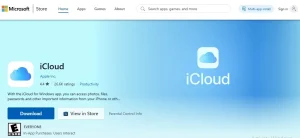
The only official source for downloading iCloud for Windows is the Microsoft Store. This ensures you always get the legitimate, latest version directly from Apple.
-
Open the Microsoft Store app on your Windows PC.
-
Search for “iCloud for Windows“.
-
Click “Get” or “Install” to download it. The app will download and install automatically through the Store.
Why the Microsoft Store? Downloading from the official store guarantees security and automates future updates. Avoid downloading installer files from other websites.
Step #2: Launch and Sign In
Once installation is complete, open the iCloud for Windows app from your Start Menu. You’ll be greeted with the sign-in screen.
-
Enter your Apple ID and password. Crucially, this must be the same Apple Account you use on your iPhone or Mac.
-
If you have two-factor authentication enabled (which you should for security), you will be instructed to verify your identity. A verification code will be sent to your trusted Apple device or phone number. Enter this code on your PC.
-
If you’ve added security keys to your account, note that you’ll need iCloud for Windows version 15 or later to sign in.
Here’s how to install and download FortiClient VPN on Windows
Here’s How to Configure Your Sync Features
After signing in, you’ll see a list of iCloud features you can choose to enable. You don’t have to turn everything on at once; select the services you need.
| Feature | What It Does & Key Settings |
|---|---|
| iCloud Drive | Syncs files and folders between your PC and iCloud. Files appear in C:\Users\[yourusername]\iCloud Drive. You can change this storage location in the app’s options if needed. |
| Photos | Syncs your iCloud Photos library with the Windows Photos app. You can choose to sync all photos or select albums. |
| Mail, Contacts, Calendars, Tasks | Keeps your iCloud email, contacts, and calendar in sync with Microsoft Outlook. Requires Outlook 2019+. |
| Bookmarks | Syncs your Safari bookmarks with supported browsers on your PC, like Microsoft Edge or Google Chrome. |
| Passwords | Allows you to use iCloud Passwords via a browser extension for Chrome or Edge, giving you access to your saved passwords. |
For each feature you want, click the Sync button next to it. You can always come back to these options later by opening the iCloud for Windows app.
How to Troubleshoot Your Common Issues
Sometimes, things don’t go the right way. Here are solutions to frequent problems:
-
“Verification Failed” or Can’t Sign In: This is often caused by third-party security software (antivirus or firewall) blocking the connection. Try temporarily disabling your security software to test, then add permissions for iCloud. Also, double-check that your PC’s date, time, and time zone are set correctly.
-
App Won’t Start or Crashes: If clicking the iCloud icon does nothing, try repairing the app via Windows Settings > Apps > Installed apps > iCloud > Modify. Ensure all Windows updates are installed, as the app requires specific system components.
-
Files Aren’t Syncing: First, check that the specific feature (like iCloud Drive) is turned on in the app. For Drive, remember that only files smaller than 1 MB download automatically; for larger files, you need to double-click them to download.
-
Advanced Data Protection Blocking Sign-in: Confirm you have iCloud for Windows version 14.1 or later. If using version 14.2+, bring a trusted Apple device (like your iPhone) near your PC and make sure both are on the same Wi-Fi network.
What If You Can’t Install the App?
If you’re on a managed computer that restricts installations or you only need temporary access, remember you can always use iCloud.com. Accessing iCloud through a web browser (like Chrome, Edge, or Firefox) lets you view your photos, mail, drive files, notes, and more. It’s a great no-installation-required alternative.
Final Tips for a Smooth Experience
-
Keep it Updated: The Microsoft Store will usually update iCloud for Windows automatically. You should keep it up to date to ensure compatibility and access to new features.
-
Manage Your Storage: The iCloud for Windows app shows a bar of your total iCloud storage usage. If you’re running low, you can manage your storage plan directly from there.
-
Use Strong Security: You can utilise the built-in security tools, such as using iCloud Keychain for passwords and enabling Advanced Data Protection (if you meet the requirements), which are the best ways to protect your data across all your devices.
Also Check, The Guide to Apple TV+
Final Remarks
After you set up iCloud for Windows, it effectively creates a bridge between your Apple devices and your PC. By following this guide, you can create a cohesive digital workspace where your important information is always where you need it, regardless of the device in your hand or on your desk.

📰 Meet Our Newest Author: Farhan Ahmed
We are thrilled to welcome Farhan Ahmed, a dynamic addition to our team of seasoned writers at TheEducationistHub.com. Farhan Ahmed is a highly skilled professional with a robust background in the realms of SEO, blogging, and the latest news trends.
🎓 Educational Background: Farhan Ahmed is a proud graduate of Karachi University, holding a Master’s in Business Administration (MBA). This academic foundation has not only equipped Farhan Ahmed with a strategic mindset but has also instilled a deep understanding of business dynamics.
💼 Professional Journey: With an impressive 4 to 5 years of hands-on experience in the field, Farhan Ahmed brings a wealth of expertise to our newsroom. Having navigated the intricacies of SEO and blogging, Farhan Ahmed has honed the art of crafting content that not only engages but also performs exceptionally well in the digital landscape.
📝 Writing Prowess: Farhan Ahmed specializes in distilling complex information into digestible and engaging pieces. Their knack for identifying and covering trending news and updates ensures that our readers stay well-informed on the latest developments across various domains.
🌐 Digital Savvy: In an era where the online landscape is ever-evolving, Farhan Ahmed is well-versed in leveraging digital tools and strategies to maximize the reach and impact of their work. Their proficiency in SEO ensures that our content not only informs but is also easily discoverable by a wider audience.
We are confident that Farhan Ahmed will play a pivotal role in enhancing the quality and relevance of the content we deliver to our readers. Join us in extending a warm welcome to Farhan Ahmed as we look forward to an exciting journey of insightful updates and news coverage.
Stay tuned for the latest from TheEducationistHub.com with Farhan Ahmed on board!