
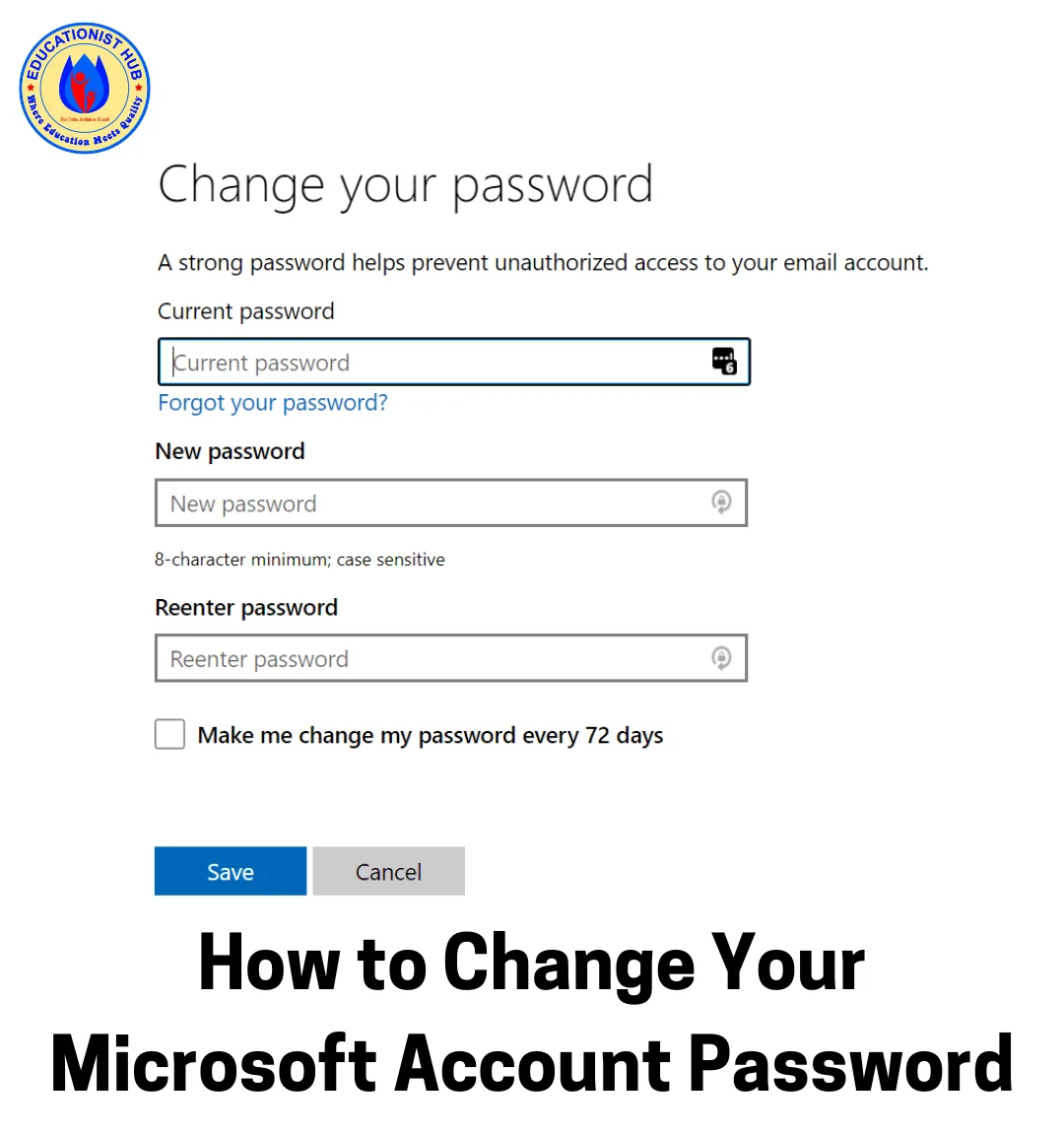
I’ve lost count of how many times I’ve had to reset a Microsoft password for a family member over the phone, guide them through it word by word while they squint at their screen. It’s not complicated once you know where to click, but Microsoft has scattered the option across a few different menus, so it’s easy to get stuck.
Microsoft Online Password Reset microsoft.com
Here’s the complete Microsoft account password change process, laid out in a simple manner.
First, Check Your Recovery Info
Before you touch the “change password” button anywhere, open your account’s security settings and confirm your recovery email and phone number are current. If you’ve had the same Microsoft account for years, there’s a decent chance one of these is outdated — maybe it’s an old work email you don’t use anymore, or a phone number from a carrier you switched away from.
This matters because Microsoft will almost always ask you to verify it’s really you before letting you change anything. If your recovery details are stale, you could lock yourself out trying to be careful. Take two minutes now and fix that first.
Changing Your Password From a Browser
This is the method that works no matter what device you’re on, so it’s the one I recommend to most people.
- Go to your Microsoft account page and sign in as usual.
- Click into the Security section near the top.
- Find “Change password” under your security overview.
- Microsoft will send a verification code — either to your recovery email, your phone, or as a push notification if you have the Authenticator app set up.
- Enter that code, then type your current password followed by your new one (twice, to confirm).
- Save it, and you’re done. The change applies everywhere you use that account — Outlook, Xbox, OneDrive, all of it.
Doing It Directly From Windows
If you’re already logged into your PC and just want to update the password there, you don’t need to open a browser at all.
Press Ctrl + Alt + Delete, and you’ll see an option to change your password right on that screen. Type your old one, then your new one twice, and hit Enter. One thing worth knowing: if your Windows login is tied to a Microsoft account (rather than a local-only account), this update syncs straight to the cloud, so it takes effect on other devices too. If your laptop is a work machine tied to a company domain, this step might route you somewhere else entirely — your IT department’s portal, usually.
Speaking of built-in Windows tools, if you ever run into unrelated hiccups — the Get Help app not launching, Notepad acting strange, or you’re considering a full reset with Fresh Start — those are worth bookmarking separately, since password issues often surface alongside other small OS quirks.
Updating It From Your Phone
Whether you’re on iPhone or Android, the mobile route is nearly identical to the browser one, just tucked inside the Outlook or Microsoft account app.
Tap your profile picture, go to Settings, then select your account and choose to manage it — this opens a mobile version of the same account page you’d see on a computer. From there, move to Security, then Change password, and verify your identity the same way as before.
When You’re Locked Out Completely
Forgot your password entirely? Look for the “Forgot password” link on the sign-in screen instead of trying to guess. You’ll be asked for your email or phone number, sent a code, and then allowed straight to setting a new password — no old password required.
Two-factor authentication won’t cooperate? If your phone isn’t receiving texts, check that the number still has service. No phone at all? The Authenticator app can generate a code offline, which has saved me more than once while traveling with no signal.
Lost everything — old email, old phone, uninstalled the app? There’s a longer account recovery form for this exact situation. Fill it out with as much detail as you can remember: old passwords, subject lines from past emails, even an old Xbox gamertag. The more specific you are, the faster it gets approved.
While you’re troubleshooting device settings in general, it’s worth knowing your way around related basics too — like how Airplane Mode works on Windows 10 if you’re testing connectivity issues, or how to get quick in-app help on Windows 11/10 when something’s not behaving as expected.
After You’ve Changed It
Once your new password is set, take a few extra minutes to lock things down properly. Turn on two-step verification if you haven’t already — it’s genuinely the biggest single thing you can do to keep your account safe. Install the Authenticator app so you can sign in with a tap instead of typing anything at all. And if you’ve got old devices you no longer use signed into your account, go sign them out remotely from the security dashboard.
It only takes a few minutes, but it’s the difference between a quick fix and a much longer headache down the road. If you run into anything unexpected along the way — say, a stubborn app that won’t open or a document editor acting up — the Notepad troubleshooting guide covers a handful of those common annoyances too.
Have you had to reset your Microsoft password recently? If you hit a snag somewhere in the process, drop it in the comments — chances are someone else has run into the exact same thing.

📰 Meet Our Newest Author: Farhan Ahmed
We are thrilled to welcome Farhan Ahmed, a dynamic addition to our team of seasoned writers at TheEducationistHub.com. Farhan Ahmed is a highly skilled professional with a robust background in the realms of SEO, blogging, and the latest news trends.
🎓 Educational Background: Farhan Ahmed is a proud graduate of Karachi University, holding a Master’s in Business Administration (MBA). This academic foundation has not only equipped Farhan Ahmed with a strategic mindset but has also instilled a deep understanding of business dynamics.
💼 Professional Journey: With an impressive 4 to 5 years of hands-on experience in the field, Farhan Ahmed brings a wealth of expertise to our newsroom. Having navigated the intricacies of SEO and blogging, Farhan Ahmed has honed the art of crafting content that not only engages but also performs exceptionally well in the digital landscape.
📝 Writing Prowess: Farhan Ahmed specializes in distilling complex information into digestible and engaging pieces. Their knack for identifying and covering trending news and updates ensures that our readers stay well-informed on the latest developments across various domains.
🌐 Digital Savvy: In an era where the online landscape is ever-evolving, Farhan Ahmed is well-versed in leveraging digital tools and strategies to maximize the reach and impact of their work. Their proficiency in SEO ensures that our content not only informs but is also easily discoverable by a wider audience.
We are confident that Farhan Ahmed will play a pivotal role in enhancing the quality and relevance of the content we deliver to our readers. Join us in extending a warm welcome to Farhan Ahmed as we look forward to an exciting journey of insightful updates and news coverage.
Stay tuned for the latest from TheEducationistHub.com with Farhan Ahmed on board!



Leave a Reply